Docs / Material
Vendors
Vendors are the companies you buy parts from. Open Vendors in the sidebar.
Finding a vendor
- The list shows each vendor's name and number, its Quality (the share of its inspections that passed), Terms, Phone and Balance. Click a row to open the vendor.
- Quality is green at 95% or more, amber from 85% and red below that.
- Searching: type in Search vendor name or number. It matches from the first character.
- Filters: All, Most active (vendors with recent inspections first) and Recently added. They're hidden while you're searching.
Adding and editing a vendor
- New vendor opens the form:
- Vendor name is required.
- Vendor number: leave it empty and one is assigned automatically. It can't be changed after the vendor is created.
- Tax ID, Phone and Website (just the address, like
example.com). - Terms: Payment terms (Net 30 Days for a new vendor), Payment method, Shipping method and Credit limit.
- Create vendor saves it and opens the vendor's page. Edit on the vendor's page changes it later.
- Change history (the clock button) shows who changed the vendor and when. See Change history.
- Delete (the bin button) asks first. A vendor with inspections or purchase orders can't be deleted; you'll see how many. Otherwise the vendor, its contacts and addresses, and its links to parts are removed.
The vendor's page
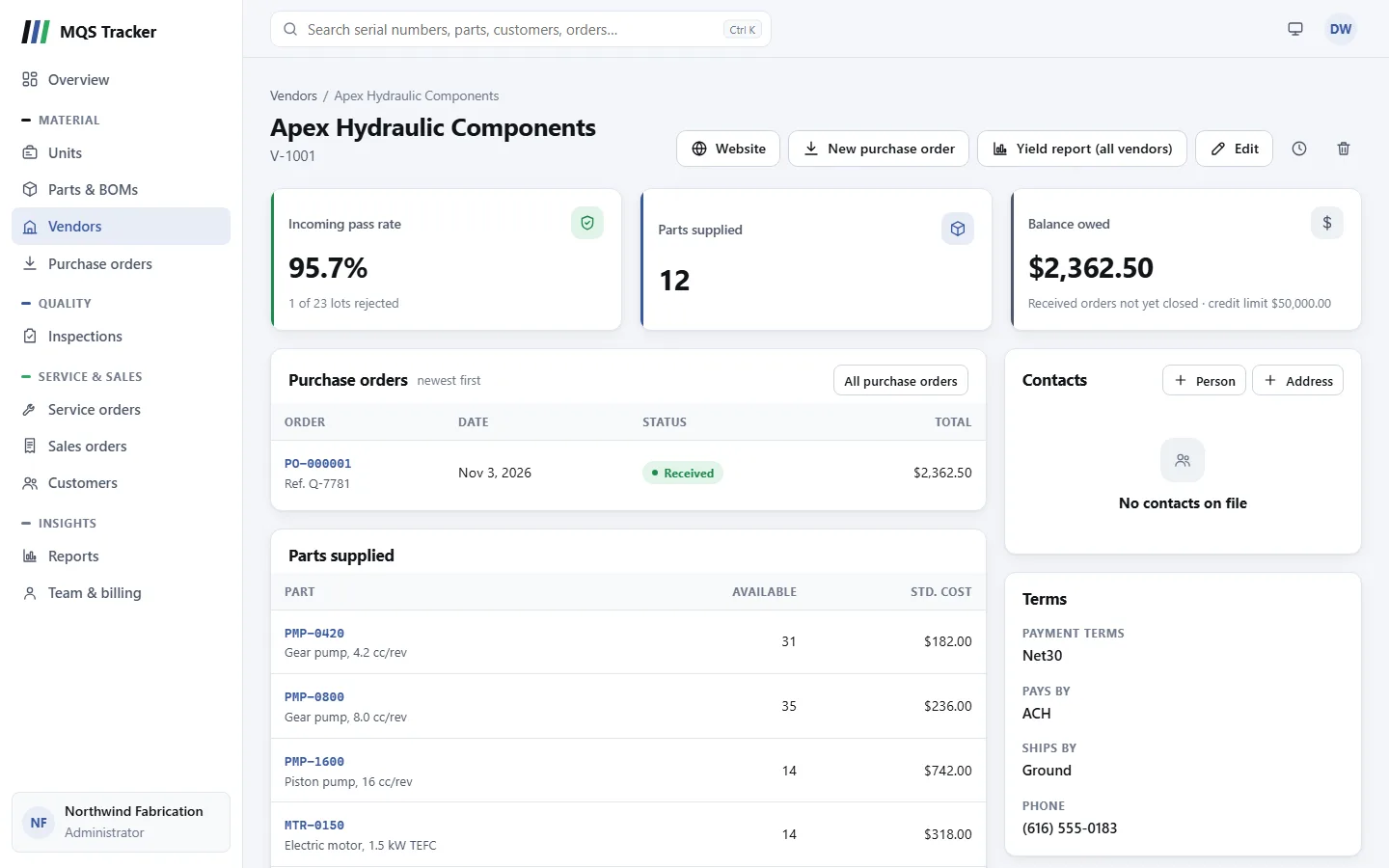
- The figures:
- Incoming pass rate: the share of the vendor's incoming inspections that passed, with how many lots were rejected. A vendor with no incoming inspections yet shows "—" (and "No inspections" in the vendor list) rather than a score.
- Parts supplied: how many parts the vendor is linked to.
- Balance owed, with the vendor's credit limit: the totals of their purchase orders that have been received and not yet closed. It goes up when an order is received and down when it's closed.
- Purchase orders lists the vendor's latest orders, newest first; New purchase order at the top starts one for them. See Purchase orders.
- Parts supplied lists each part the vendor is linked to, with what's Available and its Std. cost. Click a part to open it. To add or remove a part here, link or unlink the vendor on the part's page (see Parts and bills of materials).
- Terms: Payment terms, Pays by, Ships by and Phone.
- Website opens the vendor's website in a new tab, when it has one.
- Yield report (all vendors) opens the Incoming Inspection Yield by Vendor and Part report: the pass rate of incoming inspections for each vendor and part, for every vendor. See Reports.
Contacts and addresses
The Contacts card lists the vendor's people and addresses. Customers have the same card (see Customers).
- Adding a person: Person, then Name (required), Email and Phone, and Add contact. A contact's email address opens in your email app.
- Adding an address: Address, then Street, Street line 2, City, State, Postal code and Country, and Add address. Everything except the second street line is required. The country starts as
US. - Changing or removing: the pencil button beside a person or address edits it, and the bin button removes it after you confirm.