Docs / Service & sales
Invoices
An invoice bills one customer for one or more of their sales and service orders. It goes from Draft to Issued to Paid. Issuing it marks its orders Invoiced, and once payments cover the total, it's paid and its orders are closed. Open Invoices in the sidebar, under Service & sales.
The list
- The table shows each invoice's number, the Customer, the invoice date, the Due date, the status and the Total. An issued invoice with some of it paid or credited reads Partly paid, with what's still due under the total; one settled by credits alone reads Credited. An issued invoice whose due date has passed is marked Overdue. Select a row to open the invoice.
- Searching: type the start of an invoice number, or of the customer's name or number.
- Filters: All (newest first), Draft, Issued, Overdue, Paid and Void.
- On a customer's page, the Invoices tab lists theirs. See Customers.
- The search box at the top finds invoices by number. See Finding your way.
Creating an invoice
- From an order: on a fulfilled sales order or a completed service order, select Create invoice. The customer is filled in and that order is ticked.
- From the list or a customer's page: select New invoice and choose the Customer.
- Orders to bill lists the customer's orders that are ready: sales orders that are Fulfilled, service orders that are Completed, and orders already marked Invoiced by hand that aren't on an invoice. Tick the ones to bill. When there's only one, it's ticked for you.
- The Invoice date starts as today. Select Create invoice.
- The invoice number (such as
INV-000001) is assigned automatically, and the invoice starts as Draft. - Payment terms and due date: the invoice takes the customer's Payment terms (see Customers), and the due date follows from them. For example, Net 30 is due 30 days after the invoice date. Terms without a number of days, such as Due on Receipt, are due on the invoice date.
Orders on the invoice
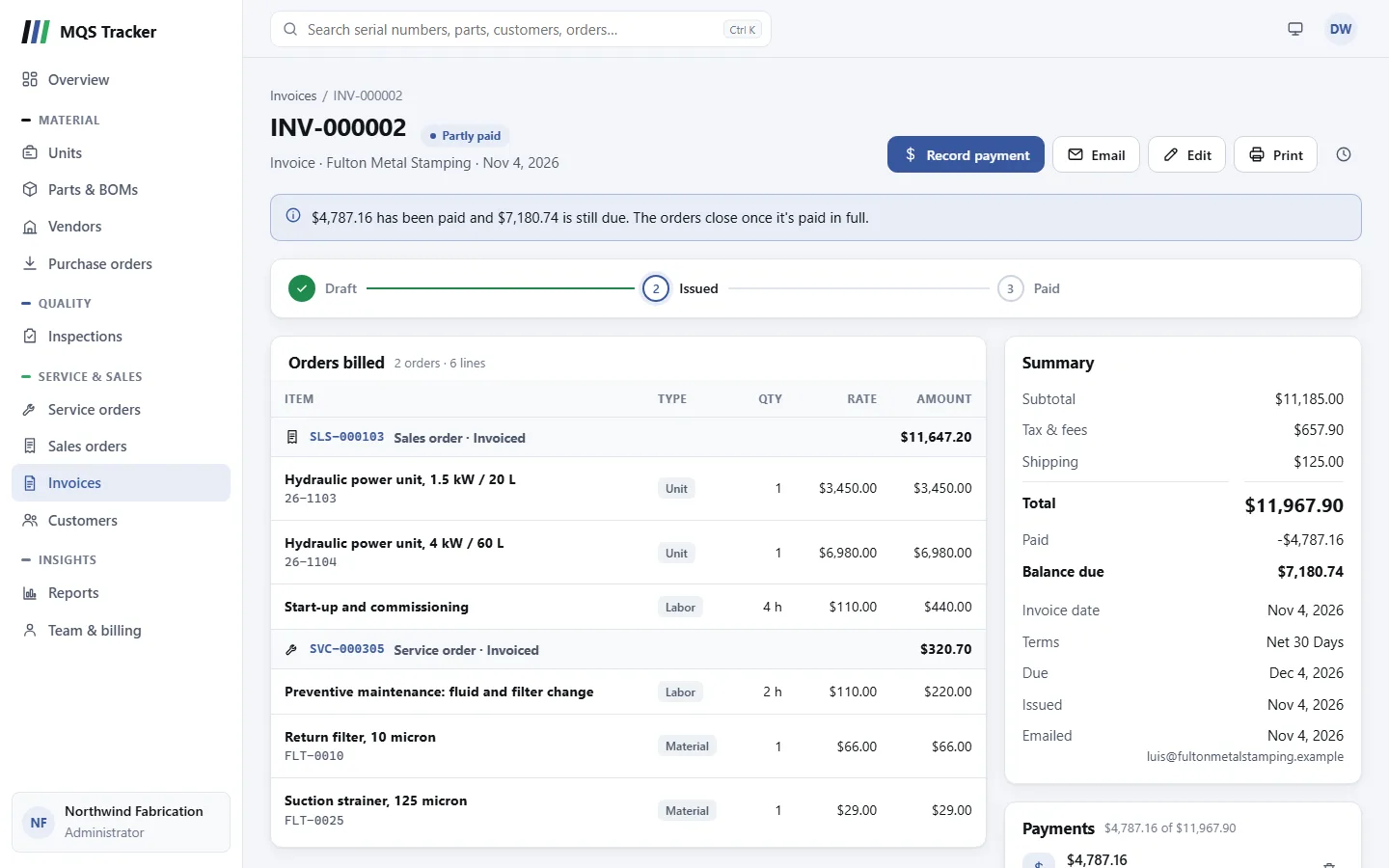
- Orders billed shows each order with its number, type, status and total, and its lines under it: description, part or serial number, quantity, rate and amount. Select the order number to open the order.
- Add orders (on a draft) lists the customer's other orders that are ready to bill. Tick the ones to add and select Add to invoice.
- Taking an order off: the × button on the order (on a draft). Its lines come off the invoice; the order itself doesn't change.
- An invoice bills one customer. An order can be on only one invoice at a time, unless that invoice is void.
- The lines and totals are copied from the orders. While the invoice is a draft, the orders can still change. When it's issued, the lines are copied again, so the invoice matches the orders.
- The Summary card shows the Subtotal, Tax & fees, Shipping and Total (the orders' totals added up). It also shows the Invoice date, Terms and Due date, and once they happen, when it was Issued, Paid or Voided, and the Payment reference.
Status steps
The steps across the top show where the invoice is: Draft, Issued, Paid. The main button at the top moves it to the next step.
- Issue invoice (from Draft): the invoice goes to the customer. It needs at least one order, and asks first. Its orders become Invoiced: their lines are locked, they count toward the customer's Balance, and a sales order's sales commission is counted from that date. See Sales orders. The invoice's dates, terms and orders can't change after this.
- Paid: the invoice becomes paid once its payments cover the total (see Recording payments below). Its orders are closed, which takes them off the customer's balance.
- Void isn't a step. An administrator can set it under Edit, and the invoice shows "This invoice was voided." instead of the steps.
Recording payments
- Record payment (on an issued invoice) opens the payment. The Amount starts as the balance due; change it for a part payment. Enter when it was Received, the Method (it starts as the customer's preferred payment method) and a Reference if you like, such as a check number. Select Record payment.
- A part payment leaves the invoice issued, marked Partly paid, and takes the amount off the customer's Balance straight away. The Summary card shows what's been Paid and the Balance due.
- Paid in full: when the payments cover the total, the invoice is Paid and its orders are closed. The drawer says which it will be before you save.
- A payment can't be more than the balance due.
- The Payments card lists each payment with its date, method and reference.
- Removing a payment (administrators): the bin button on the payment, for one recorded by mistake. A paid invoice that's no longer covered goes back to Issued, and its orders go back to Invoiced and onto the customer's balance.
Who can change the status
- Issuing and payments: anyone can issue an invoice and record payments.
- Removing a payment: administrators. See above.
- Voiding: an administrator can void an issued invoice under Edit, to withdraw it. Its orders stay Invoiced, and on the customer's balance, and can go on a new invoice. An invoice with payments or credits can't be voided: remove them first. Void is final.
- Edit lists only the statuses you can move to from where the invoice is. Paid isn't one of them: payments decide it.
Orders on an invoice
While an order is on an invoice that isn't void:
- On a draft invoice, it can't be cancelled, moved back a step or closed. Take it off the invoice first.
- On an issued or paid invoice, its status follows the invoice: issuing invoices it, and paying the invoice in full closes it. To cancel it, an administrator voids the invoice first.
- It can't be given to another customer.
- Its page has a button for the invoice (such as Invoice INV-000001) in place of Close order, and its Summary card links to the invoice.
- Mark invoiced is still under the order's Edit, for orders billed outside MQS Tracker. An order marked invoiced that way can still go on an invoice later.
Editing the invoice
Edit opens the invoice's details:
- Status: see above.
- Invoice date, Due and Payment terms: only while it's a draft. Changing the date or terms works out the due date again; you can then change the due date itself. The due date can't be before the invoice date.
- Notes: printed on the invoice, for example how to pay. You can change them at any time.
Select Save changes when you're done.
Credits
- Issue credit (administrators, on an issued or paid invoice) gives the customer money back against the invoice's lines: a price adjustment or a write-off. The credit comes off the balance due first; what's left over is refunded or kept as customer credit. See Credit notes.
- Apply credit (on an issued invoice) uses credit the customer has available from another credit note.
- The Summary card shows what's been Credited, and the Credits card lists the credit notes against the invoice or applied to it.
Emailing an invoice
Email (on an issued or paid invoice) sends the invoice to the customer:
- To starts with the email addresses of the customer's contacts. Change it as you need; separate up to 5 addresses with commas.
- Message (optional) goes above the invoice.
- The email shows the invoice: your organization's details, the invoice's dates and terms, who it's billed to, each order's lines, the totals, what's been paid, the balance due, and the notes.
- It comes from MQS Tracker's address. Replies go to your organization's email (set under Team & billing), or to you if there isn't one.
- The Summary card shows when it was last Emailed, and to whom.
- Drafts and void invoices can't be emailed. An organization can email up to 60 invoices and credit notes in any hour, counted together.
Printing an invoice
Print opens the invoice as a document to print or save as a PDF:
- Your organization's name, address, phone and email (set under Team & billing), then the invoice number, Invoice date, Terms and Due date (and when it was paid).
- Bill to: the customer's name, number, billing address and phone, and the Balance due by the due date (or Paid in full).
- Each order's lines under its number and date, then the subtotal, tax and fees, shipping and Total due, and the notes. A partly paid invoice shows the total, what's been paid and the Balance due; a paid one, the Total paid.
- A void invoice prints as Invoice (void).
Deleting an invoice
- Only a Draft invoice can be deleted: the bin button at the top. Its orders don't change and can go on another invoice.
- Once it's issued, an administrator can void it instead, so there's a record.
- The clock button shows the invoice's change history, including its lines and payments.