Docs / Material
Purchase orders
A purchase order records the parts you've ordered from a vendor. It goes from Draft to Submitted to Received to Closed. Receiving its lines puts the parts in stock, as they arrive. Open Purchase orders in the sidebar.
The list
- The table shows each order's number (with the vendor's reference, if you entered one), the Vendor, the date, the Expected date, the status and the Total. A submitted order whose expected date has passed is marked Late. Select a row to open the order.
- Searching: type the start of an order number, or of the vendor's name or number.
- Filters: All (newest first), Draft, Submitted, Received and Closed.
- On a part's page, the Inventory position shows how many are on order, when any are on submitted orders. That links to the purchase orders with the part on them.
Creating an order
- Select New purchase order, choose the Vendor and, if you like, add a Vendor reference (their quote or order number) and an Expected by date (when the vendor expects to deliver). Select Create order.
- You can also start one from a vendor's page with New purchase order; the vendor is filled in.
- The order number (such as
PO-000001) is assigned automatically, and the order starts as Draft.
Adding parts
- Add line, enter or pick the Part number, the Quantity, and the Unit cost. Leave the unit cost empty to use the part's standard cost.
- Changing a line: the pencil button. Removing a line: the bin button.
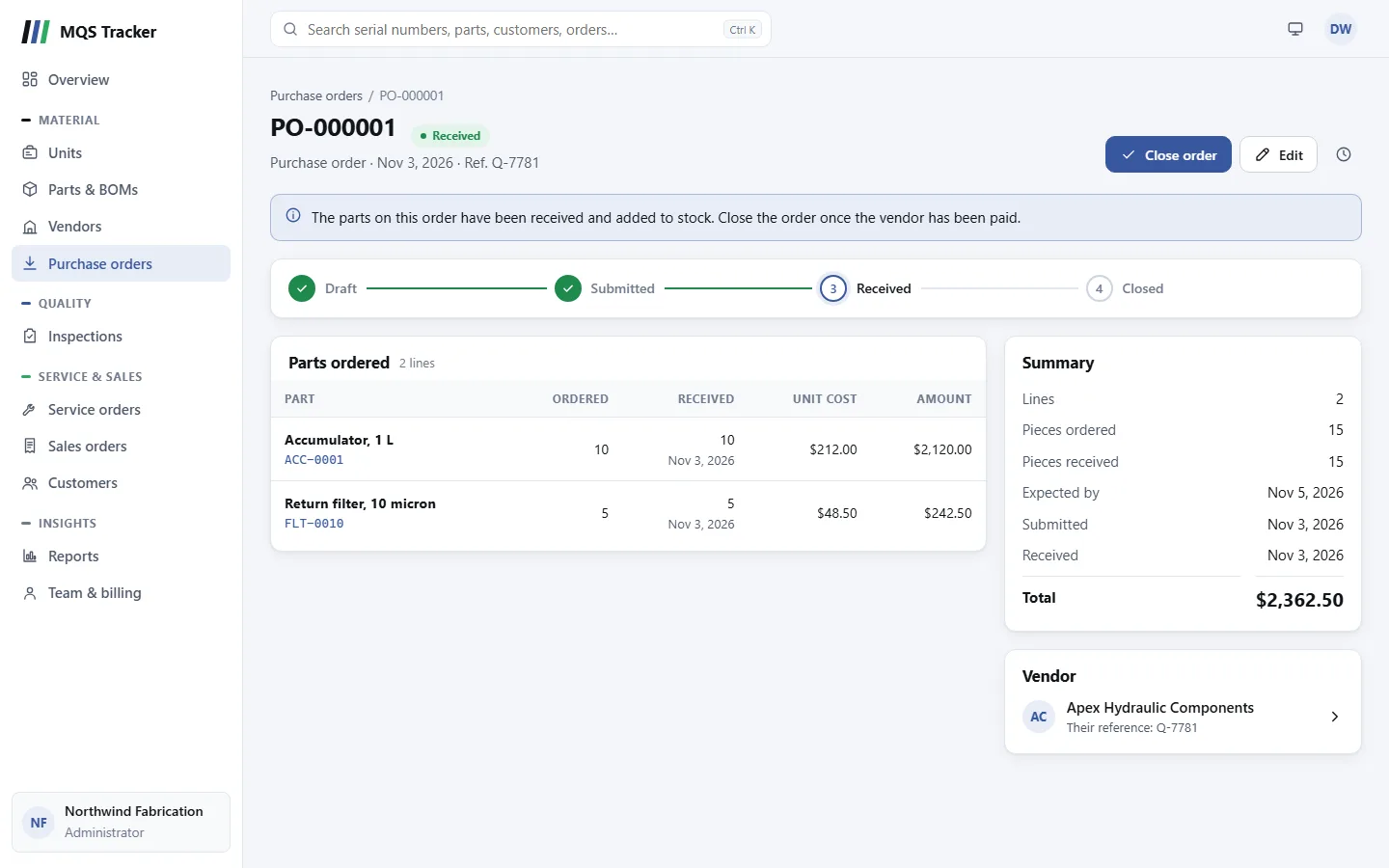
- The Summary card shows the number of lines, the pieces ordered (and, once lines come in, the pieces received and still to come), the Expected by date (marked Late once it has passed on a submitted order), when the order was Submitted and Received, and the Total.
- Assemblies can't go on a purchase order: they're built, not bought.
- Lines can be changed only while the order is a Draft. Once it's submitted it's what the vendor was sent, and the lines are locked.
Status steps
The steps across the top show where the order is. The main button at the top moves it to the next step.
- Submit order (from Draft): the order has gone to the vendor. It needs at least one line. Its parts now count as on order.
- Received: the order becomes received by itself once every line has been received (see Receiving parts below). Its total is then added to what you owe the vendor. See Vendors.
- Receive all (from Submitted): receives every line still to come in full, in one go. Once some lines have come in, the button reads Receive the rest and asks first.
- Record payment (from Received): the vendor has been paid. Enter the Date paid (today to start), the Payment method and a Reference such as the check number, then select Record payment. The order is Closed and its total comes off the vendor's balance. The order shows when and how it was paid, and the QuickBooks export lists it as a bill payment. To correct the payment, select Edit. An administrator who moves a closed order back to Received clears the payment. Orders closed before payments were recorded (November 2026) have the day they were closed as their payment date, with no method or reference; correct them with Edit if the vendor was paid on another day.
- Cancelled isn't a step. Set it under Edit, and the order shows "This order was cancelled." instead of the steps.
Receiving parts
While an order is Submitted, each line has a Receive button. Use it when that part arrives, and enter the Quantity received: what's ordered doesn't change.
- All of it: the line is received and the parts go into On hand. See Parts and BOMs.
- Fewer than ordered: the line is received with what came, and the rest goes on a new Back-order line ("Rest of line 1"), still on order. Receive it when the rest arrives.
- More than ordered: the line is received in full, and an Over-receipt line ("Extra on line 2") records the extra. The extra goes into stock and the total goes up.
- A line can be received only once. The Received column shows how many came and when; lines not in yet show To come.
- Cancelling a back-order: if the vendor won't send the rest, the × button on the back-order line takes it off the order, and the total drops.
- The Amount and the order Total count what was received for received lines, and what's ordered for lines still to come.
- When nothing is left to come, the order moves to Received by itself.
Who can change the status
- Forward: anyone can move an order one step forward, with the main button or under Edit.
- Back: an administrator can move an order one step back under Edit. Moving a received order back to Submitted takes its total off the vendor's balance and undoes its receipts: what was received comes out of stock again, the back-order and over-receipt lines are removed, and the lines are ready to receive again. Moving a submitted order back to Draft does the same.
- Cancelling: anyone can cancel an order before it's received. Cancelling an order undoes any receipts in the same way. An administrator can also cancel a received order. A closed order can't be cancelled.
- Reopening: an administrator can reopen a cancelled order; it starts again as Draft.
- Edit lists only the statuses you can move to from where the order is.
Editing the order
Edit opens the order's details: Status, Vendor (only while it's a draft), Vendor reference, Expected by and Notes. You can change the expected date at any time, for example when the vendor gives a new delivery date. Select Save changes when you're done.
Inspecting what arrives
Receiving lines is what puts the parts in stock. To record that you checked a lot, record an Incoming inspection with Purchase Order as the source. The inspection records the result; it doesn't change stock. See Inspections and rejections.
Deleting an order
- Only a Draft order can be deleted: the bin button at the top deletes it and its lines.
- Once it's submitted, cancel it instead, so there's a record.
- The clock button shows the order's change history, including its lines.
Reports
The purchasing reports are under Material on the Reports page: Open Purchase Orders, Parts on Order, Purchases by Vendor (with on-time delivery) and Purchase Price Variance. Vendor Balances, under Finance, shows what you owe each vendor. MRP Component Shortage and Parts on Order count only lines still to come, and Purchase Price Variance covers lines by when they were received.