Docs / Quality
Inspections and rejections
An inspection records that you checked a lot of parts or a serial-numbered unit, and whether it passed. A failed inspection also records a rejection: why it failed and what you did with it. Open Inspections in the sidebar.
Recording an inspection
You can start from three places:
- The Inspections page: Record inspection. You choose what you're inspecting and fill in the rest.
- A part's page: Record inspection fills in the part number and the part's first linked vendor, as an Incoming inspection from a Purchase Order. Assemblies don't have this button. See Parts and bills of materials.
- A unit's page: Record inspection fills in the serial number, as a Final inspection from Internal Audit. See Units.
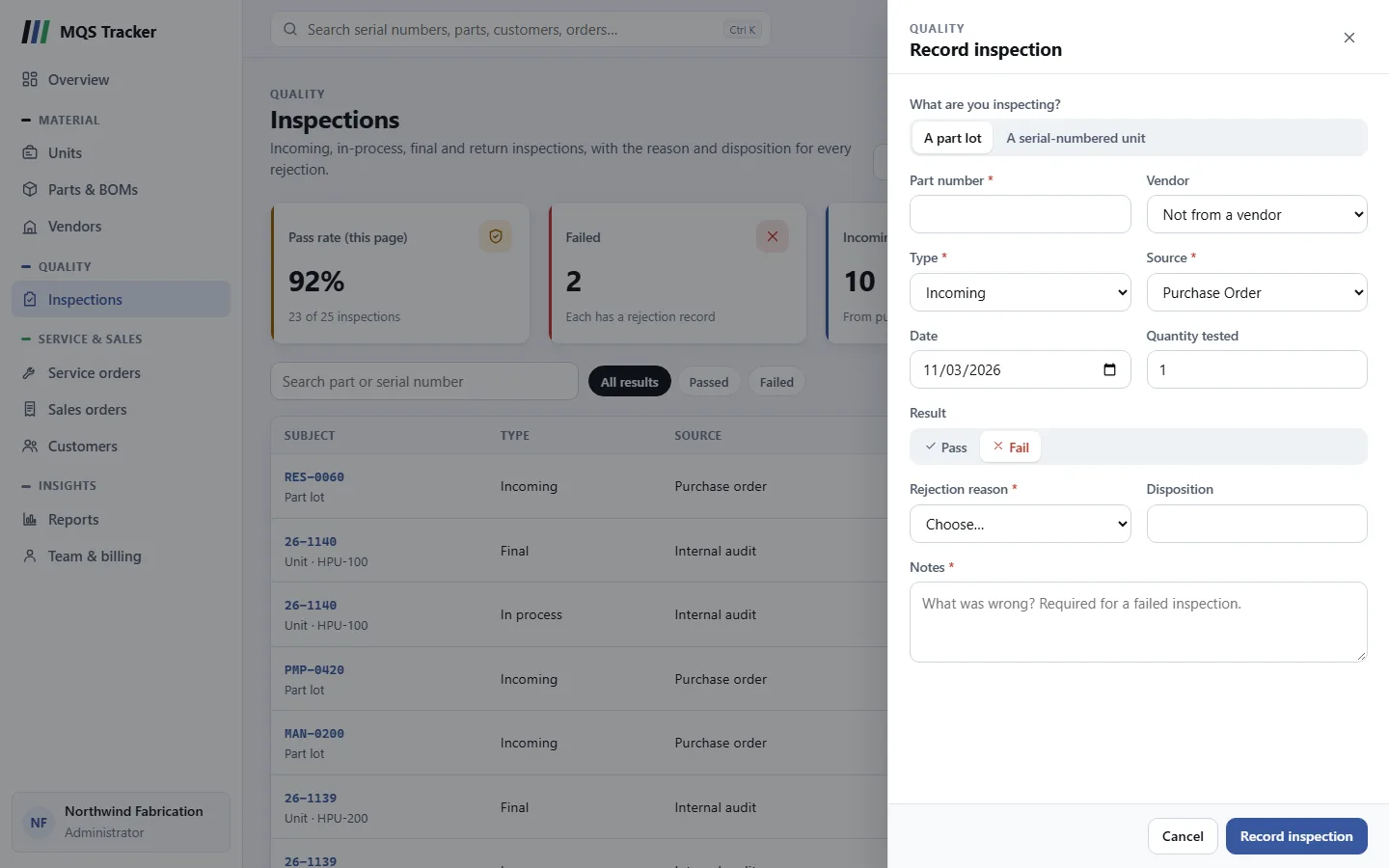
The form
- What are you inspecting? A part lot or A serial-numbered unit.
- For a part lot, the Part number (required; start typing and pick it) and the Vendor it came from, or Not from a vendor.
- For a unit, its Serial number (required).
- The part or unit has to exist already, or you'll see "Part Number was not found." or "Serial Number was not found."
- Type (required): Incoming, In-Process, Final, Periodic or Return.
- Source (required): Purchase Order, Service Order, Customer Return, Internal Audit or Customer Requirement.
- Goods a customer sends back are inspected from the return itself, with Inspect on each line; those inspections are recorded here too, as Return inspections from a Customer Return, with a link to the return.
- Date: today, unless you change it.
- Quantity tested: starts at 1.
- Result: Pass or Fail. It starts at Pass.
- Notes: optional for a pass.
- Record inspection saves it. The inspection then appears on the part's or unit's page and, when it's from a vendor, counts toward the vendor's pass rate.
When an inspection fails
Choosing Fail adds two fields, and makes the notes required:
- Rejection reason (required): pick one from the list, which is grouped by reason code.
- Disposition: what you did with the rejected parts or unit. Type your own, or pick Return to vendor, Rework, Use as is or Scrap. It's up to 20 characters.
- Notes (required): what was wrong. Without them you'll see "Notes are required when the inspection has failed."
Recording a failed inspection creates a rejection record with the reason and disposition. The disposition is a record of what you decided; it doesn't change stock or orders.
Stock: an inspection records what you found; it doesn't change stock. Parts go into stock when their purchase order is marked received. See Purchase orders.
The inspection's page
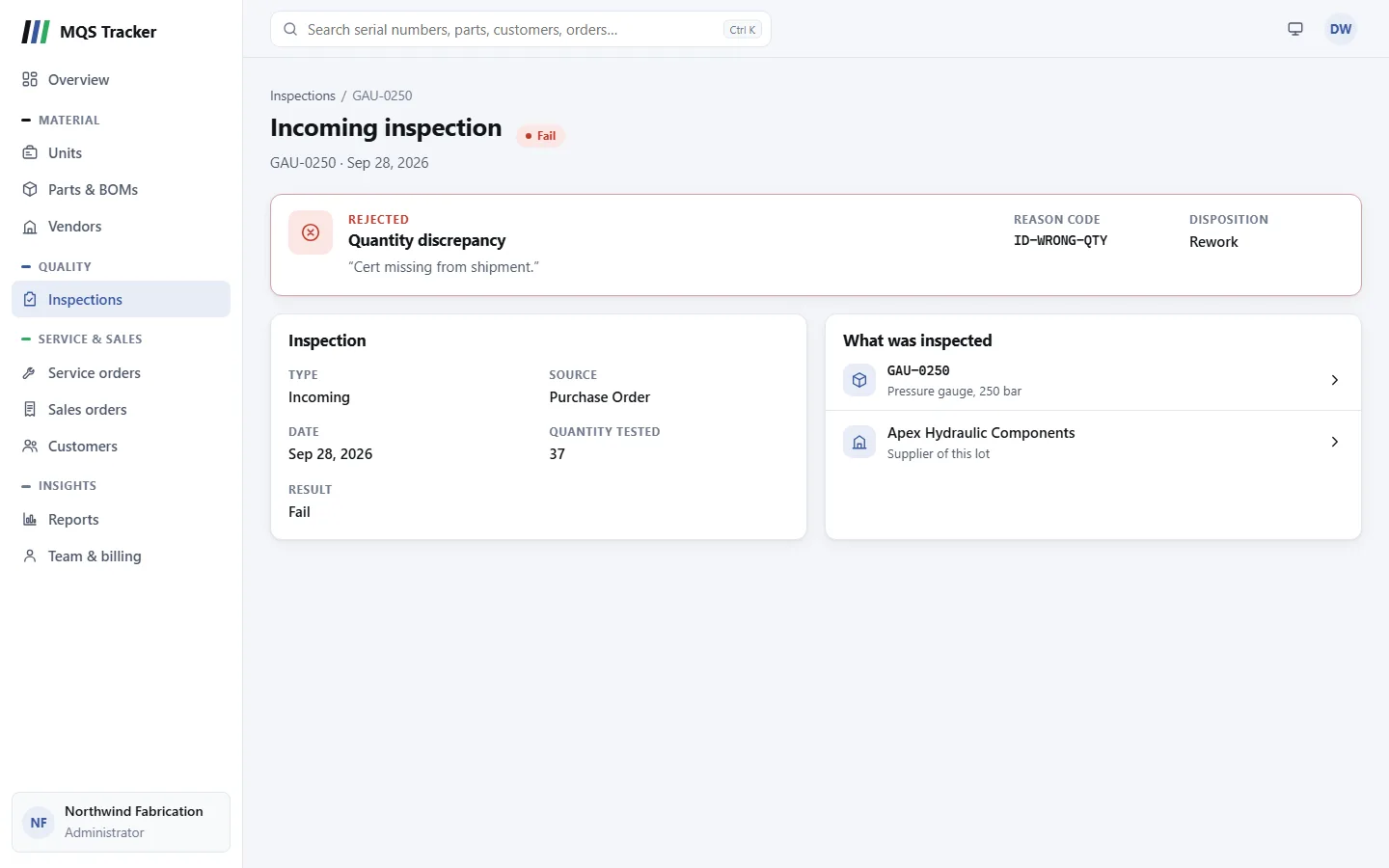
Click an inspection anywhere in MQS Tracker to open it.
- At the top: the type of inspection, what was inspected and the date, with the result.
- Rejected (failed inspections only): the rejection reason, the notes, the Reason code and the Disposition.
- Inspection: Type, Source, Date, Quantity tested and Result, with the notes for a pass.
- What was inspected: links to the unit (with its full history), the part, and the vendor that supplied the lot.
- Inspections can't be changed or deleted once they're recorded.
Finding inspections
- The list shows the most recent inspections first: the Subject (part or serial number), whether it was a part lot or a unit, Type, Source, Date, Qty and Result.
- Searching: type in Search part or serial number. It matches from the first character.
- Filters: All results, Passed and Failed, newest first, across all your inspections. They're hidden while you're searching.
- The figures above the list cover the page you're looking at: Pass rate (this page), Failed, Incoming lots and Units inspected. They're shown with All results.
- Rejection reasons and Vendor scores open the Rejection Reason Breakdown and Vendor Quality Scores reports. See Reports.
- On other pages: a part's page lists its inspections, a unit's Unit history shows each of its inspections, and a vendor's page shows its pass rate.