Docs / Your account
Team and billing
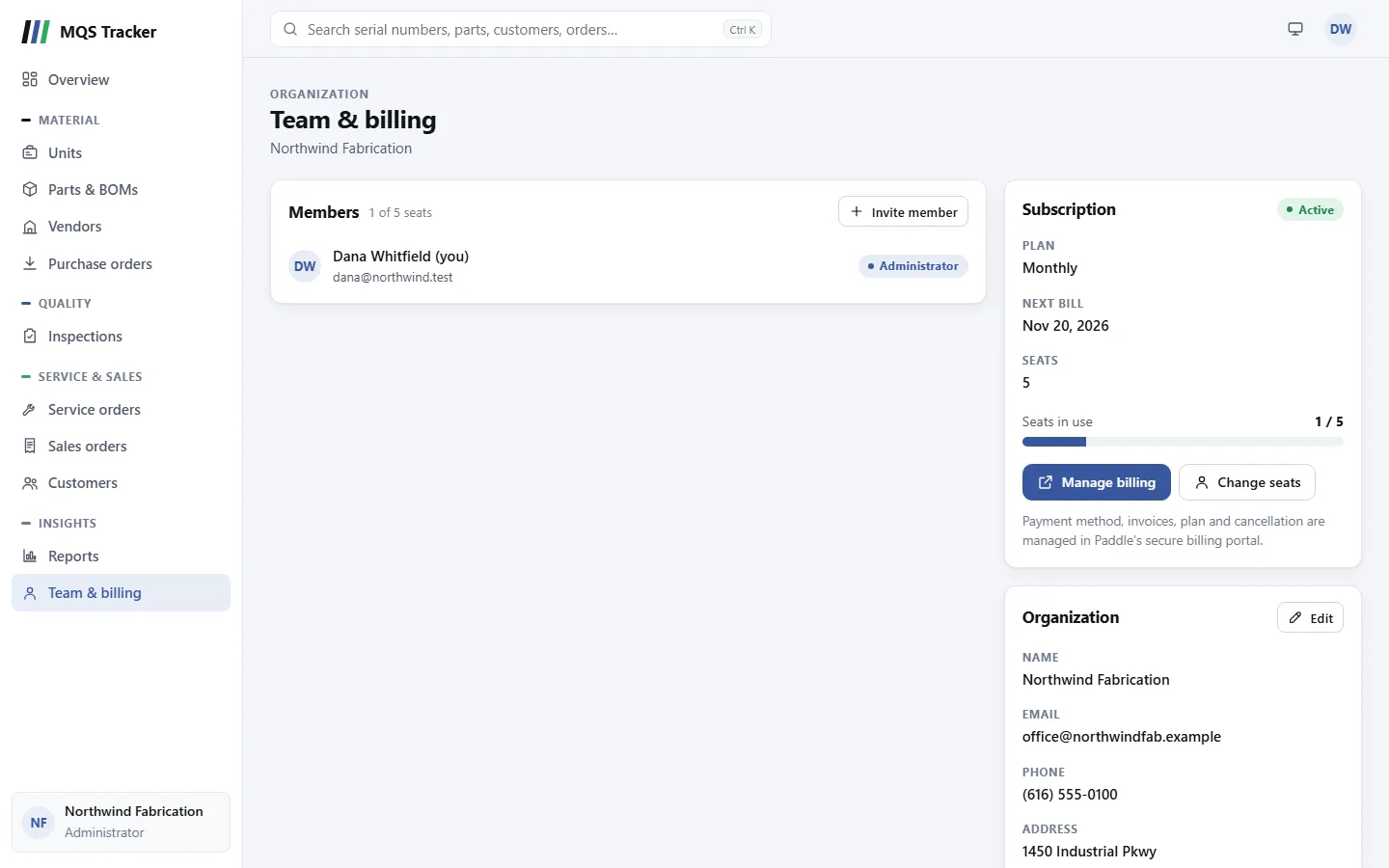
Team & billing is where your organization's people and subscription are managed. Open it from the sidebar (under Insights) or the account menu › Team & billing. Most of it is for administrators.
Administrators and members
- Members use everything in MQS Tracker: units, parts, inspections, orders and reports.
- Administrators can do all of that, and also invite and remove people, change roles, edit the organization's details, and manage the subscription and billing.
- Whoever creates the organization is its first administrator.
- Every organization needs at least one administrator. You can't remove or demote the last one; you'll see "An organization must have at least one administrator."
- Members see the subscription's status and the organization's details, but not the member list: "Only administrators can see the member list." Ask an administrator to add or remove teammates.
Inviting someone
- Choose Invite member on the Members card, enter their Name and Email, tick Administrator if they should manage members and billing too, and choose Send invitation.
- Someone new to MQS Tracker gets an email with a link to set their password. The link is valid for 7 days; after that they can use Forgot password? on the sign-in page.
- Someone who already has an MQS Tracker account (from another organization) just gains access to yours, and signs in as usual.
- During the free trial too: you can invite people while you're trying MQS Tracker, so your team can try it together.
- Each member uses a seat, including anyone who hasn't set their password yet. If every seat is taken, inviting someone adds a seat to your subscription (the invite form says so). You can also add seats first with Change seats.
- If the invitation email can't be sent, they're still added. They can use Forgot password? on the sign-in page to set a password.
Changing roles and removing people
Next to each member, other than you, are two buttons:
- The shield makes a member an administrator, or an administrator a member (Make administrator / Make member).
- The bin removes them, after you confirm. They lose access to your organization straight away. Their account, and anything they recorded, stays.
- Removing someone frees a seat, but doesn't lower what you pay. To pay for fewer seats, use Change seats afterwards.
- You can't change your own role or remove yourself. Ask another administrator.
The subscription
The Subscription card shows where you stand:
- The status: Free trial, Active, Payment due, Canceled or Paused.
- Plan: Monthly or Annual.
- Free trial ends (during the trial), and First bill or Next bill.
- Seats, and Seats in use against them.
All billing goes through Paddle, our merchant of record. Your invoices come from Paddle.
Seats
- Change seats opens a box to set the number of seats. It shows how many you'd add or remove, and Update seats saves it. Paddle may take a moment to confirm.
- You need a seat for every member. To go below the number of members you have, remove members first.
The billing portal
- Manage billing opens Paddle's secure billing portal in a new tab. There you can update your payment method, see and download invoices, change your plan, and cancel.
- If your browser blocks the new tab, the button turns into Open the billing portal; select it to open the portal.
Cancelling
- Cancel any time from the billing portal: Manage billing, then cancel your subscription in Paddle.
- No refunds: payments already made aren't refunded.
- Changed your mind? A canceled subscription can be restarted from the billing portal. The Subscription card says when it was canceled.
When the subscription isn't active
- Payment due: if a payment doesn't go through, the status shows Payment due and everyone keeps using MQS Tracker for now. Update your payment method in the billing portal to keep access.
- Canceled or paused: the app's pages are replaced by "Your subscription isn't active." Your data is kept safe.
- Administrators see Manage billing, to update the payment method or restart the plan, and I've updated it, check again to reopen the app once it's sorted.
- Members see "Your organization's subscription isn't active" and are asked to have an administrator set up billing. Check again looks once more.
- Team & billing, Your profile and About MQS Tracker stay open either way, so an administrator can always get to billing and everyone can still manage their own details and send feedback.
Your organization's details
The Organization card shows its Name, Email, Phone and Address, and Your role. Administrators can choose Edit to change them, then Save changes. The name has to be one no other organization uses.
The address is printed at the top of sales and service orders. It's optional, but once you start one, fill in the street, city, state, postal code and country. To remove it, clear every address field and save.