Docs / Service & sales
Credit notes
A credit note gives a customer back some of what an invoice charged: a price adjustment (a discount, an overcharge, a damage allowance) or a write-off (an amount you won't collect). It credits the invoice's lines, with tax at each line's own rate. Open Credit notes in the sidebar, under Service & sales.
Issuing a credit
Administrators issue credits, from an issued or paid invoice:
- On the invoice, select Issue credit.
- Choose the Reason (Price adjustment or Write-off) and the Date. A credit for goods that came back is issued from the return instead, with Issue credit: the reason is Return and the amounts are filled in.
- For each line you're crediting, enter the amount before tax, or select All for what's left of it. Each line shows how much can still be credited; a line can't be credited for more than it was invoiced, across all its credits.
- The drawer works out the tax (at the line's own rate: an untaxed line gets no tax back) and the Total credit.
- Add Notes if you like; they're printed on the credit note. Select Issue credit.
The credit note number (such as CN-000001) is assigned automatically, and the credit note opens.
Where the credit goes
- First, the invoice's balance due. On an issued invoice the credit comes off what's still due, as if it were a payment. The invoice reads Partly paid with a Credited line in its summary, and once its payments and credits cover the total it's paid and its orders close.
- What's left over, when the credit is more than the balance due or the invoice is already paid, you choose:
- Refund it: record the refund you've paid the customer, with the date, method and a reference.
- Keep as customer credit: it comes off the customer's Balance (which can go below zero) and can be applied to their other invoices.
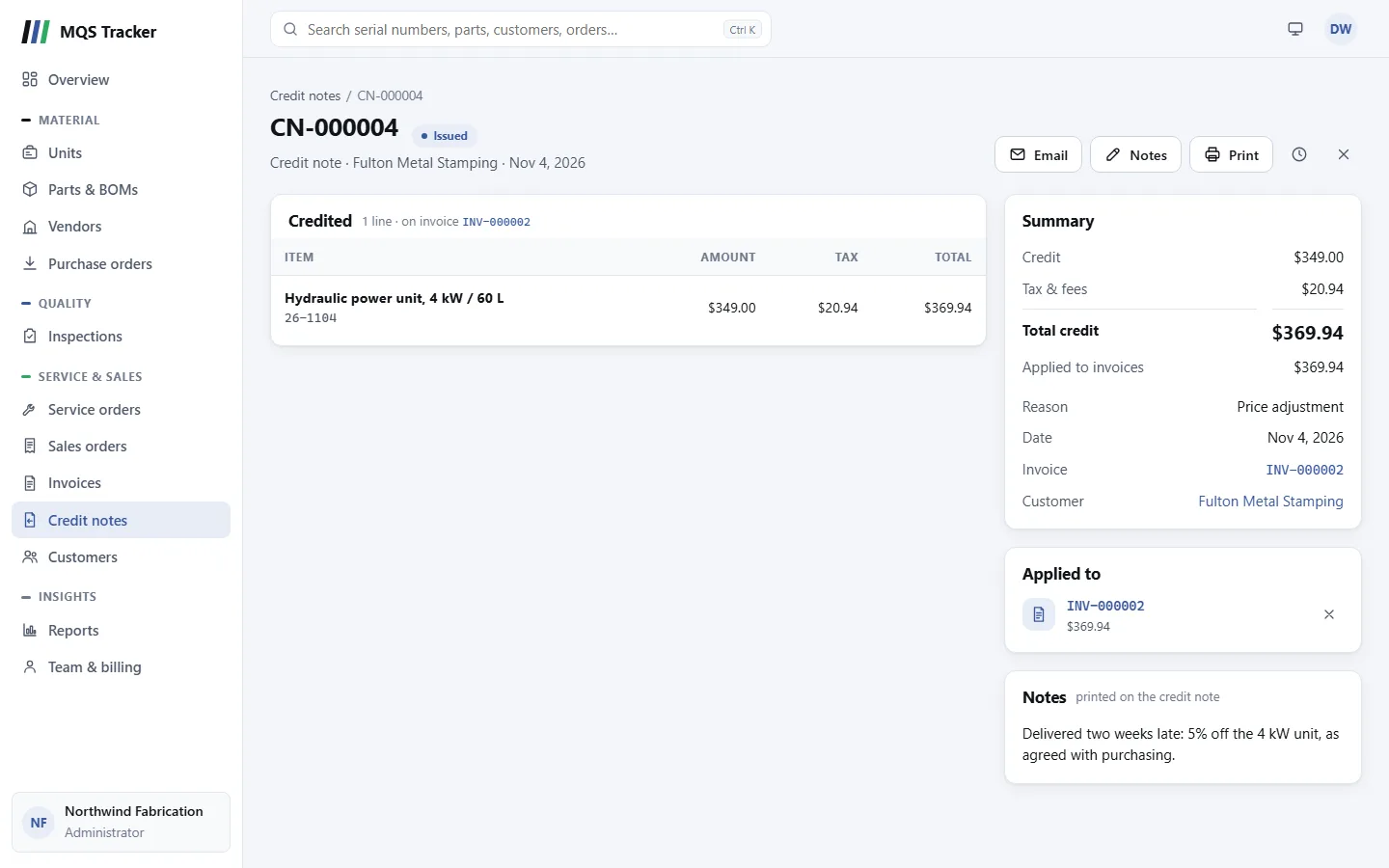
- The credit note's Summary shows what was Applied to invoices, Refunded and is still Credit available.
Applying customer credit
- From an invoice: on an issued invoice whose customer has credit available, select Apply credit, choose the credit note and the amount (it starts as what's available, up to the balance due) and select Apply.
- From the credit note: select Apply to an invoice, choose one of the customer's issued invoices and the amount.
- Applied to on the credit note lists each invoice it's been applied to. An administrator can take it off an invoice with the × button: the amount goes back onto what's due on that invoice (a paid invoice is issued again) and becomes credit available again.
Voiding a credit note
Administrators can void a credit note issued by mistake, with the × button at the top:
- It comes off every invoice it was applied to. An invoice that's no longer covered goes back to Issued, and its orders back to Invoiced.
- Any credit still available is cancelled.
- A refund stays recorded on the voided credit note; voiding doesn't undo money already paid out.
- Void is final.
An invoice with credits applied can't be voided; void the credits, or take them off, first.
Orders and the reports
- Orders don't change. A credit is a document of its own; the orders stay Invoiced or Closed. Goods coming back are recorded as a return, which puts them back in stock once approved; the credit for them is a credit note like any other.
- Commission: the sales commission reports (SLS-060 and SLS-070) count a sales order's credit as a negative line, against the order's salesperson, in the period the credit was issued. A voided credit counts back in the period it was voided. So a period's figures don't change after you've paid commission on them. Credits on service orders don't affect commission.
- Tax: the tax reports (FIN-020, FIN-030, FIN-040 and FIN-060) take each credit's tax off in the period it was issued, and put it back in the period a voided credit was voided.
- FIN-120 Credit Notes lists the credit notes dated in a range, with where each one went. See Reports.
The list
- The table shows each credit note's number and reason, the Customer, the Invoice, the date, the status and the Total, with any credit still available under it.
- Searching: type the start of a credit number, or of the customer's name or number.
- Filters: All (newest first), Issued, Credit available and Void.
- On a customer's page, the Credit notes tab lists theirs, and Account terms shows their Credit available. See Customers.
Printing and emailing
- Print opens the credit note as a document: your organization's details, the credit's number, date, invoice and reason, who it's credited to, the lines with their tax, the totals and where the credit went, and the notes.
- Email sends it to the customer, like an invoice: up to 5 addresses (filled in from the customer's contacts) and an optional message. Replies go to your organization's email. Void credit notes can't be emailed.
- Notes changes the notes at any time. The clock button shows the credit note's change history.