Docs / Getting started
Getting started
MQS Tracker runs in your web browser at app.mqstracker.com. There's nothing to install. This page takes you from signing up to your first records.
Creating your organization
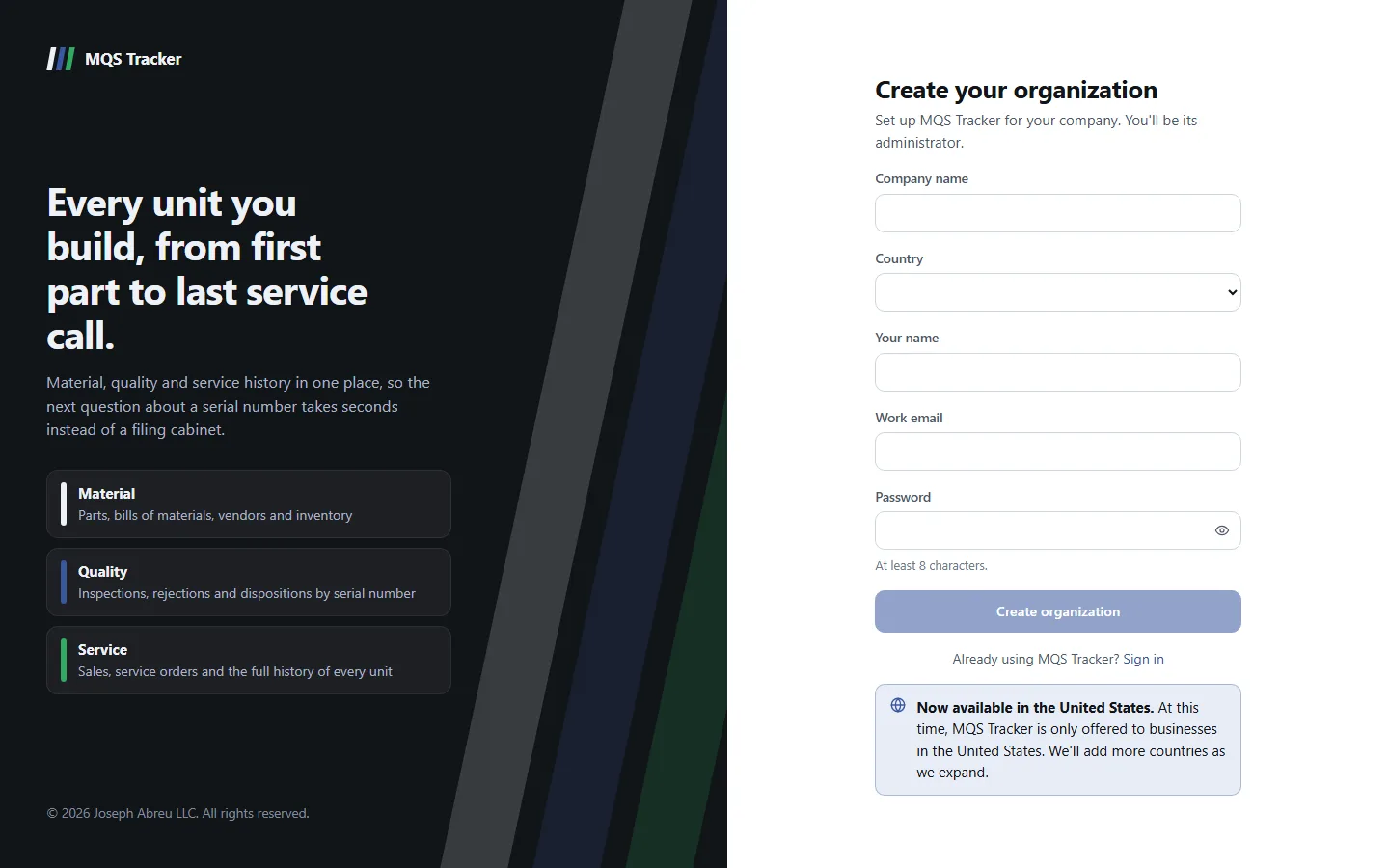
- Open the sign-up page: go to app.mqstracker.com/sign-up, or choose Create your organization on the sign-in page.
- Fill in every field:
- Company name is your organization's name in MQS Tracker. It has to be one no other organization uses; if it's taken you'll see "Organization Name is not available."
- Country: MQS Tracker is only offered to businesses in the United States for now, so United States is the only choice. Create organization stays unavailable until you pick it.
- Your name, Work email and a Password of at least 8 characters. The eye button in the password field shows what you've typed.
- Create organization creates it and makes you its administrator.
- Confirm your email: we send a link to your work email. Open it, then sign in. You can't sign in until you've confirmed, so a mistyped address can't lock you out of password resets later.
- The link works once and expires in 24 hours. If it doesn't arrive in a few minutes, check your spam folder, or choose Send the link again. At most 3 links an hour are sent to an address.
- Mistyped your email? Choose Start again, correct it and choose Create organization again. You can keep the same company name, since nobody could sign in to the first one.
- Signing in before confirming says so, sends a fresh link, and offers Send the confirmation link again.
- Already have an MQS Tracker account? Sign up with the same email and enter that account's password. The new organization is added to your account and you're signed straight in, and you can switch between them (see Finding your way around).
- Invited by a teammate? You don't sign up: setting your password from the invitation email confirms your address (see Forgot your password? below).
The free trial
The first time you sign in to a new organization, you see Start your free trial in place of the app.
- Choose a plan: Monthly or Annual. Both are priced per user, and the annual card shows how much you save. Prices exclude any applicable tax.
- Start free trial opens Paddle's secure checkout. Paddle is our reseller and merchant of record, and handles all billing. The trial's length is shown on the button and in the list above it.
- After checkout, MQS Tracker shows Activating your trial… while Paddle confirms the payment, which usually takes a few seconds. If it takes longer you'll see Almost there; it finishes on its own, and Check again looks once more.
- During the trial you have every feature: units, parts and BOMs, inspections, sales and service orders and all the reports. Team & billing shows the date the trial ends and your first bill.
- When the trial ends, Paddle bills the plan you chose, per user, and your subscription carries on. Cancel before it ends and you won't be charged. See Team and billing for cancelling.
- Not the administrator? Only an administrator can start the trial. Until they do, you'll see "Your organization's subscription isn't active."
Signing in
- Go to app.mqstracker.com/sign-in, enter your Email and Password, and choose Sign in.
- Which organization opens: the one you last used in this browser. If you belong to several, you can switch at any time.
- A link you were following opens once you've signed in, so a bookmark or a link from a teammate takes you straight there.
- Wrong password: you'll see "Invalid email or password." After 5 wrong tries in a row your account is locked for 15 minutes. Resetting your password unlocks it straight away.
- Signing out: open the account menu (your initials, top right) and choose Sign out.
Forgot your password?
- On the sign-in page, choose Forgot password?, enter your Email and choose Send reset link.
- Check your email. The link works once and expires in an hour. If it doesn't arrive in a few minutes, check your spam folder, or choose Send another link. At most 3 links an hour are sent to an address; after the third, the page says so. For your privacy the page says the same thing whether or not the email has an account.
- The link opens Set your password. Enter a New password of at least 8 characters, enter it again in Confirm password, and choose Set password. You're taken back to sign in with your new password.
- Link expired or already used? You'll see "This link is invalid or has expired. Please request a new one." Choose Request a new link.
- Invited by a teammate? Your invitation email links to the same Set your password page. An invitation link lasts 7 days; if it has run out, use Forgot password? to get a new one.
Your first steps
- The welcome: after you sign in, a short welcome shows tips for getting around. Turn off Show this when I sign in if you don't want it each time; Welcome & tips in the account menu brings it back.
- Look around: the Overview page sums up your organization once you have data. Finding your way around covers the sidebar, search and menus.
- Add your vendors and parts: start with Vendors and Parts and BOMs, so units, inspections and orders have parts to refer to.
- Add your customers: see Customers, then Sales orders and Service orders.
- Track what you build and check: Units and Inspections.
- Invite your team from Team & billing, during the trial or after. See Team and billing.
- Stuck? See Getting help.