Docs / Insights
Change history
Every unit, part, customer, vendor and order keeps a history of the changes made to it: when, who, and which fields changed from what to what.
Opening the history
- The clock button at the top of a unit, part, customer, vendor, sales order, service order or purchase order page opens the Change history panel. The record's name or number is shown above the title.
- Close or the Escape key closes it. On a phone it opens full screen.
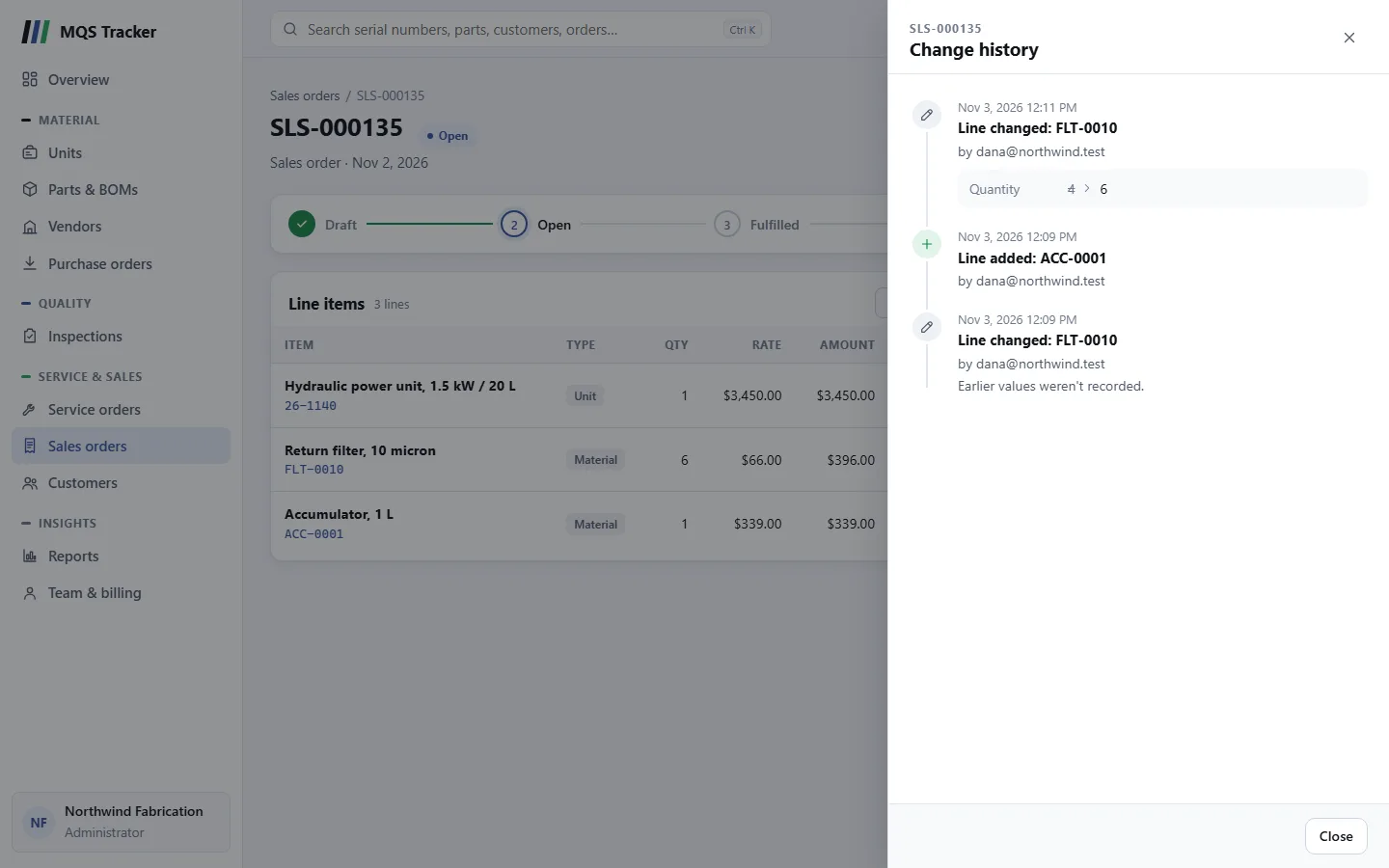
Reading an entry
The newest changes come first. Each entry shows:
- When it happened, and what happened: Created, Updated or Deleted.
- Who made it: "by" and the person's email address.
- The fields that changed, each with its old value, an arrow, and the new value. A field shown with only one value had no earlier value to compare with.
- Some notes you may see instead of fields:
- "Saved with no field changes." The record was saved without anything being different.
- "Earlier values weren't recorded." The record was changed before its history began, so there's nothing to compare with.
- "Show older changes to see what changed." The copy to compare with is further back; load older changes to see it.
- Values appear as they're stored: yes or no for check boxes, dates as dates, and some settings as their codes, such as
NET30for Net 30 days.
Orders and their lines
- An order's history includes its lines. Entries read Line added, Line changed or Line removed, followed by the part number, serial number or "Labor".
- A line change shows what changed on that line, such as its quantity, price or tax.
- Status changes, such as an order being opened or invoiced, show as an update to the Status field.
Parts and stock
- On a part, Stock levels updated entries show the part's actual, reserved and available quantities as they were set.
- They appear when someone uses Count stock, when a purchase order is received (or moved back), when an order is fulfilled or completed (or moved back), and when an order changes how much of the part is reserved. See Parts and BOMs.
Older changes
- The panel loads the most recent changes first. When there are more, Show older changes at the bottom loads the next batch.
- "No changes recorded" means nothing has been recorded for this record yet.
What isn't included
- Contacts and addresses: adding, editing or removing a customer's or vendor's contacts and addresses doesn't show in their history.
- Unit ownership: a unit moving to a new owner, for example when a sales order is fulfilled, doesn't show in the unit's history. The unit's page shows its current owner; see Units.
- Links to other records: which customer an order belongs to, for example, isn't shown as a field. Changing an order's customer shows only through what changes with it, such as the tax rate.
- Deleted records: once a record is deleted its page is gone, so there's no clock button to open its history.
- Bookkeeping fields, such as when a record was last saved, are left out.