Docs / Service & sales
Customers
Customers are the people and companies who own your equipment and buy from you. Each customer has its own page with the units they own, their orders and their account terms, and it's where you start their sales and service orders.
The customer list
Open Customers from the menu.
- The table shows each customer's name and number, their Terms, Phone, Balance and Credit used. Tax-exempt customers say Tax exempt under their name.
- Balance is what the customer has been invoiced and not yet closed out: the totals of their sales and service orders in Invoiced. Issuing an invoice invoices its orders, and paying it in full closes them. A part payment on an invoice comes off the balance straight away, as do credits applied to it. Customer credit not yet applied to an invoice comes off the balance too, so it can go below zero. It goes up when an order is invoiced and down when it's closed or cancelled, and it moves with the order if the order's customer changes. Each change shows in the customer's change history.
- Credit used is the balance as a share of the credit limit. The bar turns amber above 70% and red above 90%.
- Searching: type in the search box to find a customer by the start of their name or number.
- Filters: All, Most active (customers with sales or service orders) and Recently added.
- Select a row to open the customer's page.
Adding a customer
- Select New customer, fill in the form and select Create customer. MQS Tracker opens the new customer's page.
- Customer name is the only field you must fill in.
- Customer number is assigned automatically if you leave it blank. You can type your own when you create the customer, but it can't be changed afterwards, and two customers can't share a number.
- Tax ID, Phone and Website are optional. Two customers can't share a tax ID.
The form's fields
- Terms:
- Payment terms (a new customer starts at Net 30 Days), Payment method and Shipping method.
- Credit limit in dollars. A new customer starts at $25,000.
- Service & tax:
- Service labor rate and Billed per: what labor lines on this customer's orders are charged at.
- Tax exempt: no tax is charged on this customer's orders.
- Labor is taxable: tick it if labor should be taxed for this customer. When it's off, only taxable parts and units are taxed.
- Tax by: which of the customer's addresses new orders take their tax rate from.
- First address is the default.
- Shipping address and Billing address use the address marked as such under Contacts, or the first address if none is marked.
Editing or deleting a customer
- Edit on the customer's page opens the same form. Select Save changes when you're done.
- New rates and settings apply to order lines you add or change from now on. Lines already on an order keep the price and tax they were added with.
- Deleting: the bin button at the top of the customer's page. Their contacts and addresses go with them. A customer with sales orders, service orders, invoices or units (now or in the past) can't be deleted; you'll see what uses them.
Contacts and addresses
The Contacts card on the customer's page holds the people you deal with and the customer's addresses.
- + Person adds a contact: Name (required), Email and Phone.
- + Address adds an address: Street, City, State, Postal code and Country are required, and Street line 2 is optional. Country starts as US.
- Billing and shipping: tick Billing address or Shipping address (or both) on an address. The address list tags them Billing and Shipping. A customer has at most one of each, so marking one address unmarks the other.
- Printed orders show the billing address, plus a Ship to block when the shipping address is a different one.
- New orders are taxed by the address chosen under Tax by in Edit: the first address unless you choose otherwise. Make sure that address has the right state and postal code.
- With nothing marked, the first address is used for both.
- The pencil and bin buttons on each row edit or remove that contact or address.
The customer page
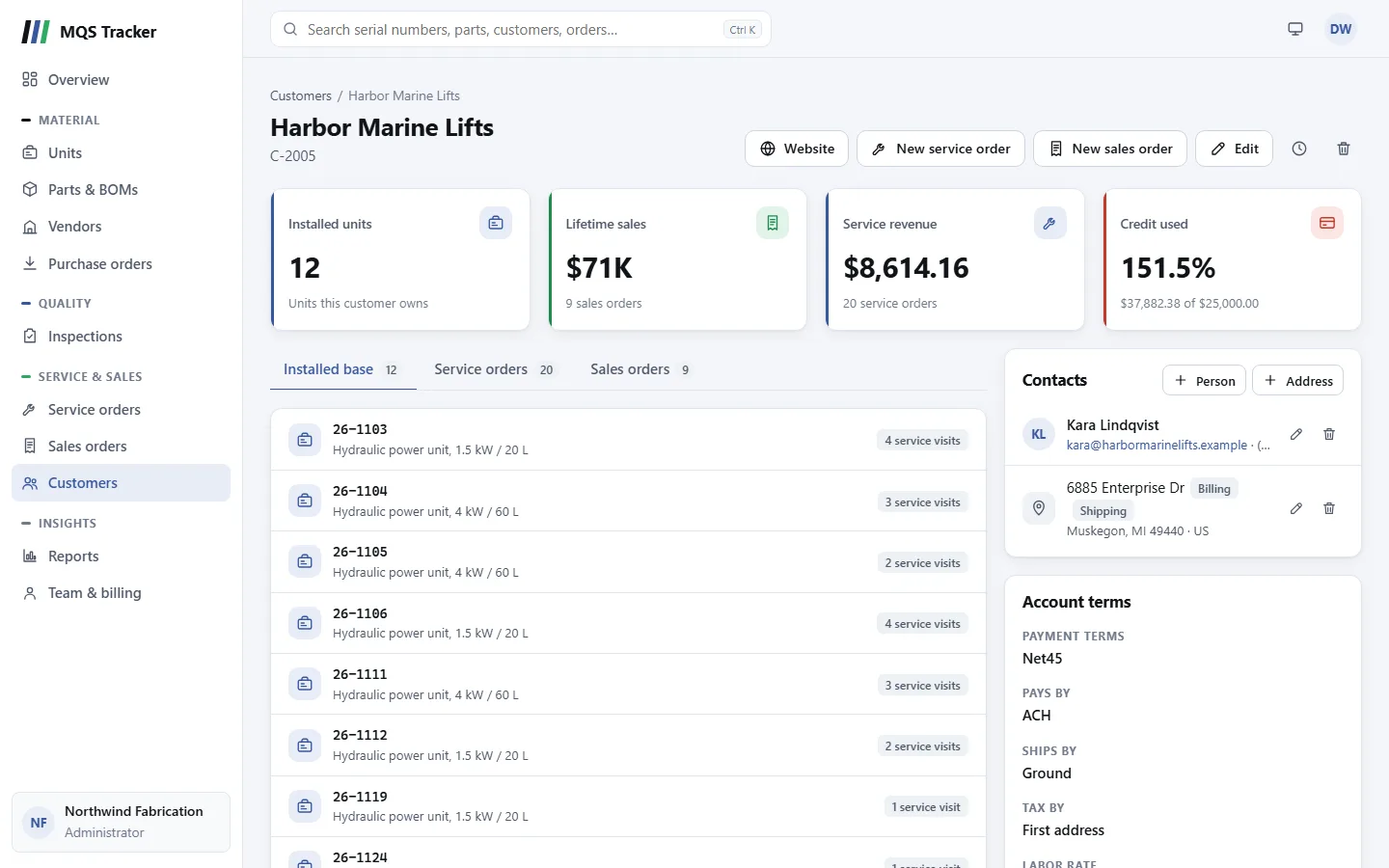
- At the top: Installed units (the units this customer owns), Lifetime sales and Service revenue (the totals of their sales and service orders, with how many of each), and Credit used (the balance against the credit limit).
- Installed base lists the units the customer owns, each with how many service visits it's had. Select one to open the unit.
- Service orders and Sales orders list the customer's orders, newest first, with their date, status and total. Select one to open it.
- Invoices lists the customer's invoices, with their date, due date, status and total. An issued invoice past its due date is marked Overdue. See Invoices.
- Credit notes (when there are any) lists the customer's credit notes. Account terms shows their Credit available, when they have customer credit to apply. See Credit notes.
- Returns (when there are any) lists the goods the customer has sent back. See Returns.
- Account terms shows the payment terms, how they pay, how they ship, and their labor rate.
- Website opens the customer's website, when one is on file.
- The clock button shows the customer's change history.
Starting an order from a customer
- New sales order and New service order on the customer's page start an order with the customer already chosen.
- New invoice starts an invoice for the customer, listing their orders that are ready to bill. See Invoices.
- See Sales orders and Service orders for what comes next.
- When a sales order with units on it is fulfilled, the units move to the customer's installed base. See Units.