Docs / Material
Parts and bills of materials
Parts are everything you buy, stock and build. An assembly is a part with a bill of materials: the components that go into one build. Open Parts & BOMs in the sidebar.
Kinds of part
- Stocked: a part you keep on the shelf. MQS Tracker tracks how many you have on hand, how many are reserved and how many are available.
- Non-stock: a part you buy or sell without tracking stock.
- Assembly: a part you build, with a bill of materials. Units are built as an assembly (see Units). Assemblies don't have stock of their own.
Finding a part
- The list shows each part's number and description, its Type, On hand and Available (for stocked parts), Std. cost and Std. price. Available is shown in red at zero and in amber below five.
- Searching: type in Search part number or description. It matches from the first character.
- Filters: All, Recently added, Recently used (parts recently added to service orders) and Recently rejected (parts with a failed inspection). They're hidden while you're searching.
Adding and editing a part
- New part opens the form as a Stocked part; New assembly opens it as an Assembly. You can switch with the Type buttons: Stocked, Non-stock or Assembly.
- The fields:
- Part number: leave it empty and one is assigned automatically. If you type one, no other part can already use it ("Part Number is already in use.").
- Description is required.
- Standard cost and Standard price. When there's a price, the form shows the margin.
- Taxable when sold is on for a new part.
- Create part saves it and opens the part's page. Edit on the part's page changes it later.
- Changing a part number: bills of materials, orders, inspections and units refer to a part by its number, so it can only be changed while nothing uses the part. Otherwise you'll see what uses it, e.g. "PMP-0800 can't be renumbered because it's used by 1 bill of materials line and 2 inspections."
- Units copy from their assembly: a unit's description, cost, price and taxable setting come from its assembly when the unit is saved.
The part's page
- At the top: the part number and description, with Assembly, Stocked part or Non-stock part.
- The figures:
- For a stocked part, On hand, Available (with how many are reserved) and Stock value (on hand × standard cost).
- For an assembly, Components (lines and pieces per build) and Material cost (the bill of materials at standard cost).
- Margin, from the standard cost and price.
- For a part that isn't an assembly, Incoming quality: the share of its incoming inspections that passed.
- Inspections: the part's most recent inspections, with the result. Click one to open it.
- Used in: the assemblies whose bill of materials includes the part, with the quantity in each.
- Details: Standard cost, Standard price, Taxable and Inventory item.
- Where used (or Costed rollup for an assembly) opens the matching report. See Reports.
- Record inspection opens the inspection form for the part as an incoming inspection (not shown for assemblies). See Inspections and rejections.
- Change history (the clock button) shows who changed the part and when. See Change history.
- Delete (the bin button) asks first. A part that's used can't be deleted: by units built as it, on another assembly's bill of materials, on sales, service or purchase order lines, or in inspections. You'll see what uses it. Deleting an assembly also removes its own bill of materials, and deleting a part removes its vendor links.
Bills of materials
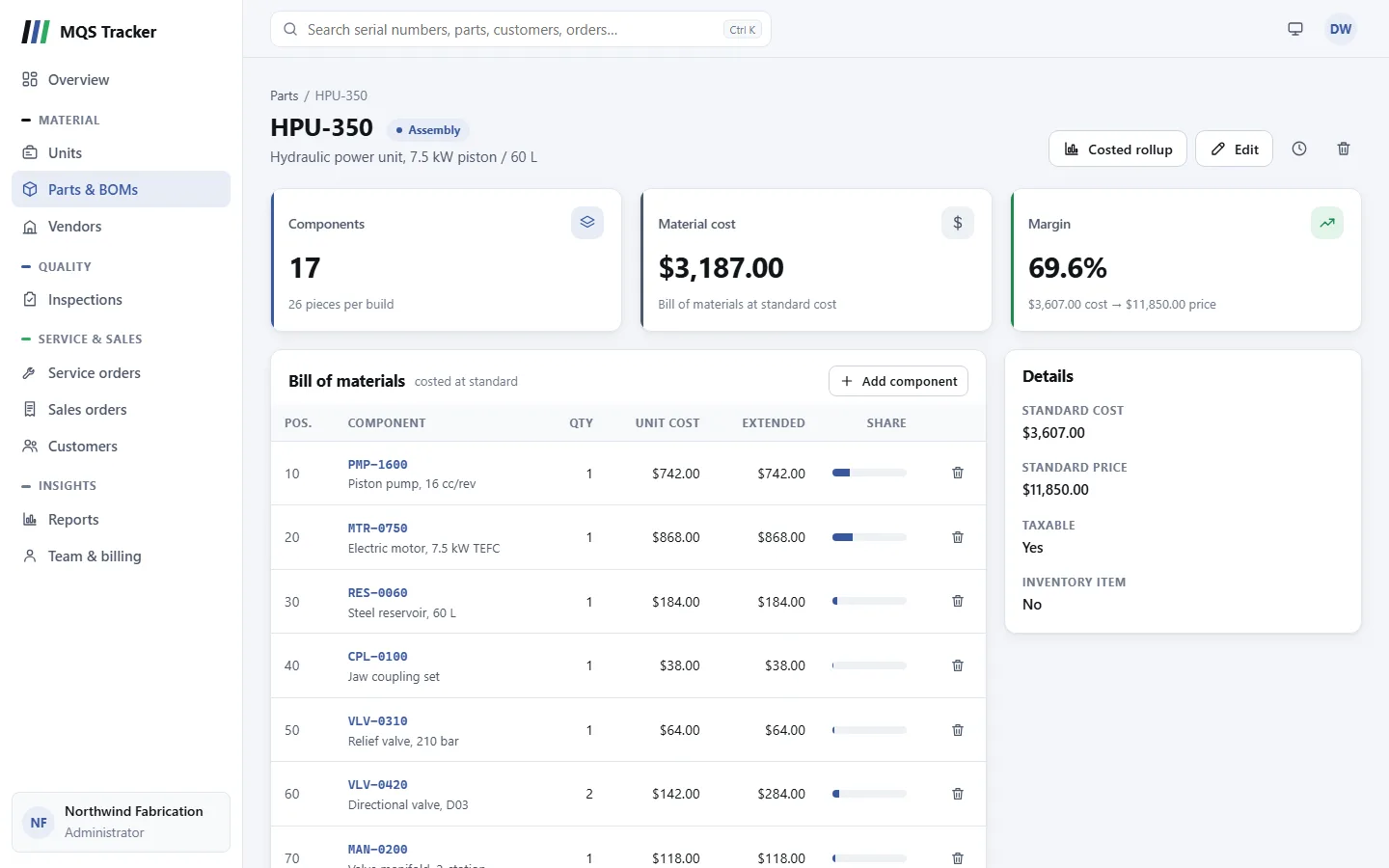
An assembly's page shows its Bill of materials: each line's Pos., Component, Qty, Unit cost, Extended cost and Share of the total, with the Material cost per build at the bottom.
- Adding a component: Add component, then fill in:
- Component part number: start typing and pick the part. It has to be an existing part ("Item Part Number was not found.").
- Position: the find number on the drawing. It's filled in as ten more than the highest position so far, and you can change it.
- Quantity per build.
- Add to bill of materials adds the line.
- Removing a component: the bin button on its line, then confirm. The line comes off the bill of materials; the part itself isn't deleted.
- Costs use each component's standard cost. The assembly's own standard cost is whatever you enter on the part; it isn't updated from the bill of materials.
Stock
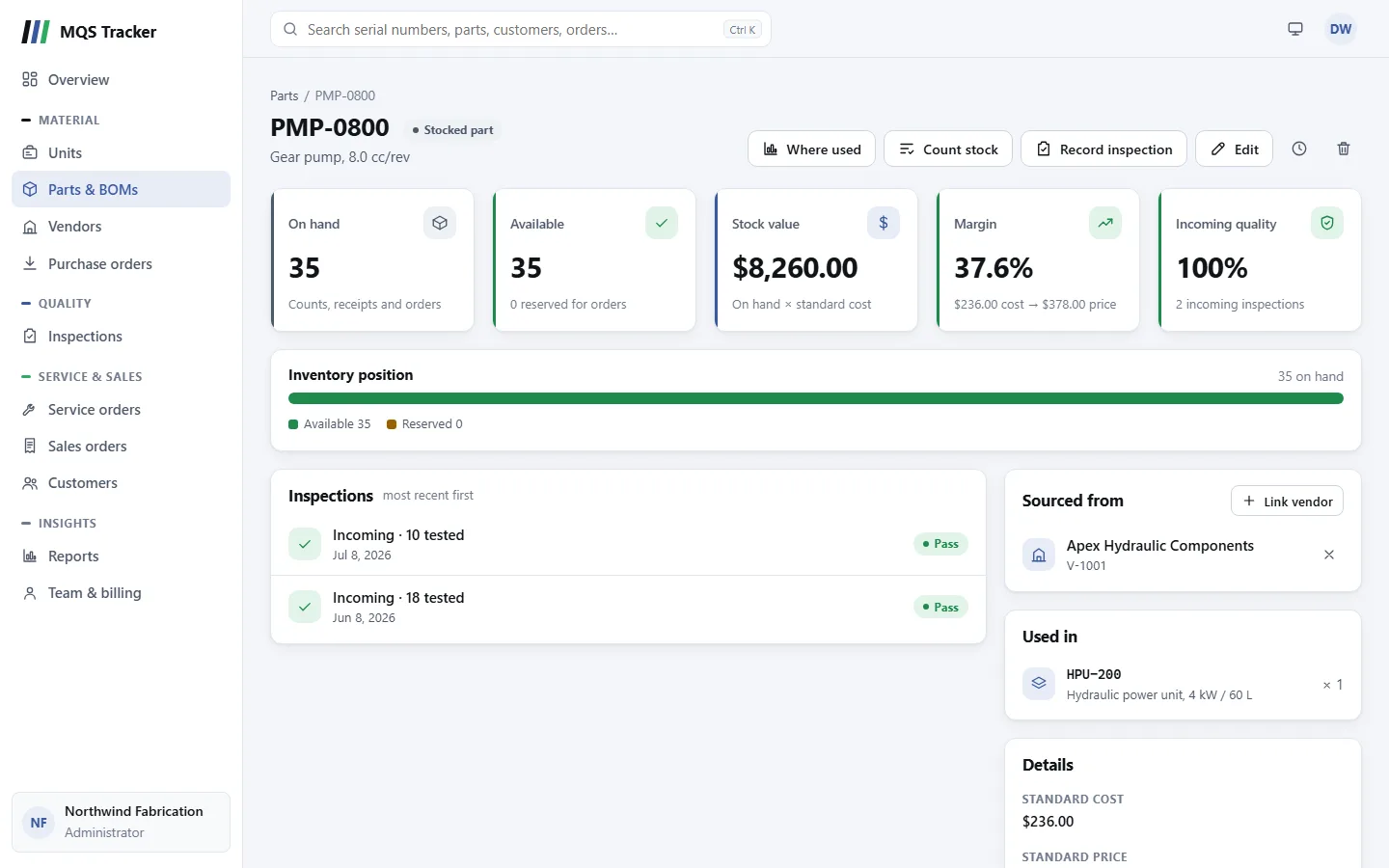
- On hand is what's on the shelf. It goes down when a sales order is fulfilled or a service order is completed, up when a purchase order is received, and is set by a count. It can go below zero (shown in red, "Below zero: count stock") when more has gone out than was recorded coming in.
- Reserved is the quantity on Open sales orders and on Open or In progress service orders. Draft orders don't reserve stock.
- Available is on hand less reserved, and never shows below zero.
- Inventory position on the part's page shows available and reserved as a bar.
- Counting stock: Count stock, enter the Quantity on hand, and Save count. Your count replaces on hand, and available is worked out again from what open orders have reserved.
- Orders and stock: fulfilling a sales order, or completing a service order, takes its part lines off on hand. Moving the order back or cancelling it puts them back, and changing part lines on a fulfilled or completed order adjusts on hand by the difference.
- Receiving: marking a purchase order Received adds each of its lines to on hand. See Purchase orders.
- On order: when the part is on submitted purchase orders that haven't arrived, Inventory position shows how many are on order, with a link to those orders.
- When reserved is worked out: when an order's lines change, when an order is saved or its status changes, when an order is deleted, and when you count or save the part.
Vendors for a part
- Sourced from lists the vendors a part (not an assembly) is bought from. Click one to open the vendor.
- Linking a vendor: Link vendor, choose the Vendor, and Link vendor. A vendor can be linked to a part only once ("That vendor is already linked.").
- Unlinking: the × button beside the vendor, then confirm. The vendor is no longer listed as a source for the part.
- The part's Record inspection fills in its first linked vendor. See Vendors.