Docs / Service & sales
Returns
A return records goods coming back from a customer: a unit, or some of the parts, from a sales order that has shipped or a service order whose parts were used. Every line is inspected, and an administrator approves the return before anything goes back to stock. Open Returns in the sidebar, under Service & sales.
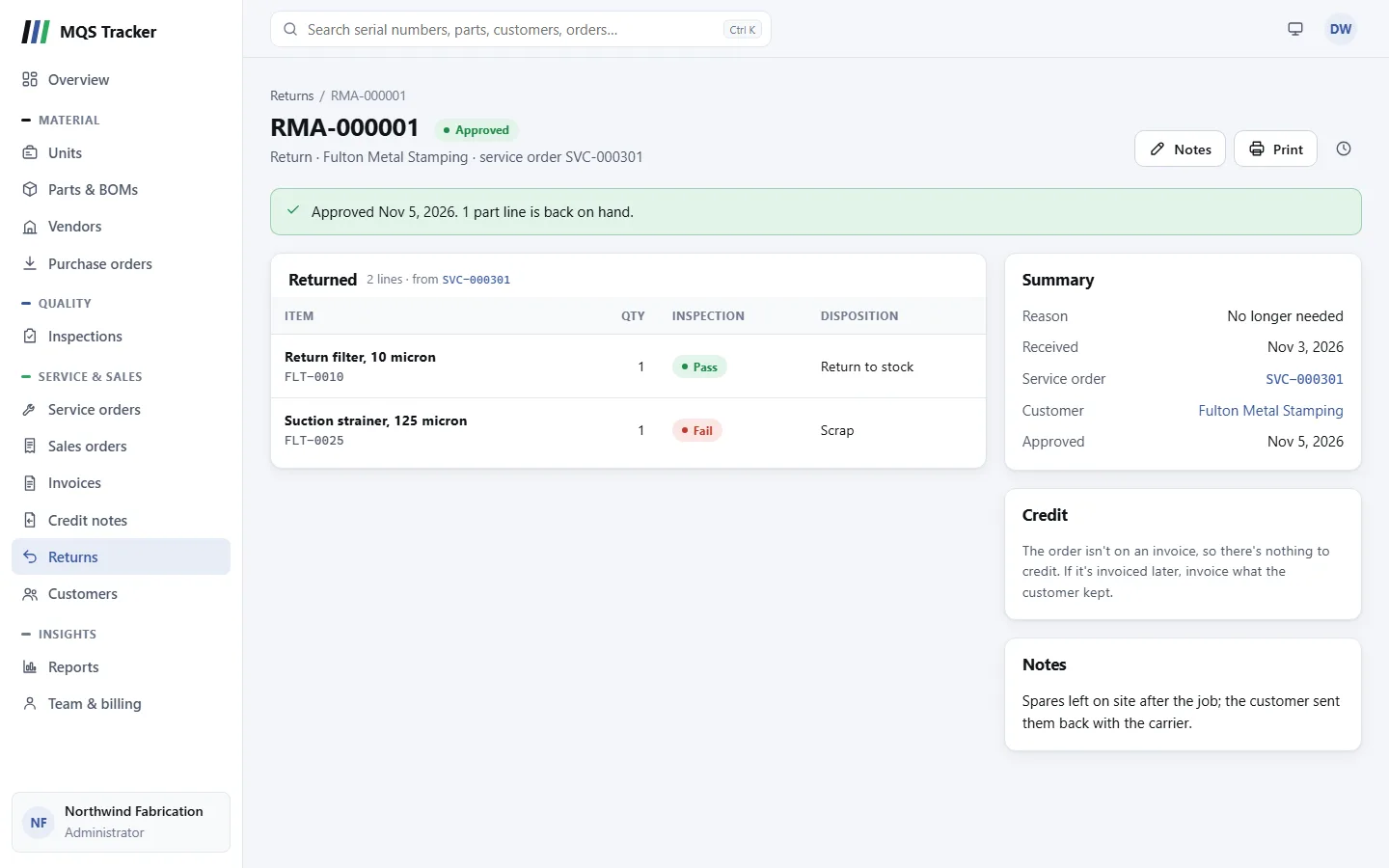
Recording a return
A return always comes from one order:
- On a sales order that's Fulfilled, Invoiced or Closed, or a service order that's Completed, Invoiced or Closed, select Record a return.
- Choose the Reason (Defective, Damaged in transit, Wrong item, No longer needed or Other) and the date it was Received.
- For each line that came back, tick Came back for a unit, or enter how many of a part. Each line shows how many can still come back; a line can't come back more times than it was on the order, across all its returns. A unit can only come back while the customer still owns it. Labor can't be returned.
- Add Notes if you like (what the customer reported, the carrier, their reference) and select Record return.
The return number (such as RMA-000001) is assigned automatically, and the return opens Awaiting inspection. Nothing goes back to stock yet.
Inspecting each line
- Select Inspect on a line, choose Pass or Fail, the date, and for parts how many were tested.
- A failed line needs a Rejection reason and Notes saying what was wrong.
- The inspection is a Return inspection from a Customer Return, recorded under Inspections and on the unit's history like any other; it links back to the return.
- A line can be inspected again (after rework, say) with Inspect again. Its latest inspection is the one that counts.
- Once every line has an inspection, the return is Awaiting approval.
Approving
Administrators approve returns. Select Approve and choose what happens to each line:
- Return to stock: parts go back on hand; a unit comes back from the customer and is in Finished goods again. Only a line that passed its inspection can go back to stock, and it's what a passed line starts as.
- Rework, Scrap or Return to vendor: nothing goes back on hand. A unit comes back from the customer, so it's no longer in their installed base. A failed line starts as Scrap.
- Return to customer: nothing changes; a unit stays the customer's.
- A unit's status follows: Returned while the return is open, then In stock, In rework, Scrapped, Returned to vendor or In service depending on the disposition.
Select Approve return. Approving is final, and it's when the stock changes. The banner says what went back.
Credit for a return
A return doesn't change what the customer owes on its own. To give money back:
- Once the return is approved and its order is on an issued or paid invoice, an administrator selects Issue credit on the return.
- The invoice opens with Issue credit filled in: the reason is the return, and each returned line is credited at its invoiced price for the quantity that came back. Change the amounts if you're giving back less (a restocking fee, say), then issue it as usual. See Credit notes.
- The return's Credit card lists the credit notes given for it, and what's still to credit. A credit note for a return shows Return as its reason, with a link back.
- If the order hasn't been invoiced yet, there's nothing to credit: invoice only what the customer kept.
Replacement orders
To send the customer replacements, select Replacement order on an approved return:
- Choose the Pricing: No charge (a warranty replacement: every line is $0, including anything added to the order later, while the costs stay for the margin reports) or Usual prices. Defective, damaged and wrong-item returns start as no charge.
- For each returned part, how many to send (up to what came back). For a returned unit, choose the unit that replaces it from those In stock, with the same model first, or Don't replace it.
- Select Create order. A new Open sales order for the customer opens, and nothing leaves stock until it ships, like any order. It says it's a replacement, with a link to the return, and the return's Replacement card links to it.
A return has one replacement order at a time. If it's cancelled, you can make another.
Orders with returns
- While goods are on a return (anything but a cancelled one), the order can't move back before it shipped or was completed, or change customer, and the returned lines can't be changed.
- The order's page has a Returns card listing its returns.
Cancelling
Anyone can cancel a return before it's approved, with the × button at the top: nothing went back to stock, its goods can come back again on a new return, and its inspections stay recorded. An approved return can't be cancelled.
The list
- The table shows each return's number and reason, the Customer, the Order, when it was Received and its status.
- Searching: type the start of a return number, or of the customer's name or number.
- Filters: Open (waiting for inspection or approval, the default), Awaiting inspection, Awaiting approval, Approved, Cancelled and All.
- On a customer's page, the Returns tab lists theirs. See Customers.
- Print opens the return as a document to go with the goods: what came back, from which order, each line's inspection result and disposition, and the notes. The clock button shows its change history.
- QUA-130 Customer Returns lists each returned line in a date range, with its inspection result and disposition. See Reports.