Docs / Insights
Reports
MQS Tracker comes with built-in reports across material, quality, service, sales and finance. Open one to filter it, see it as a chart, and export it.
The Reports list
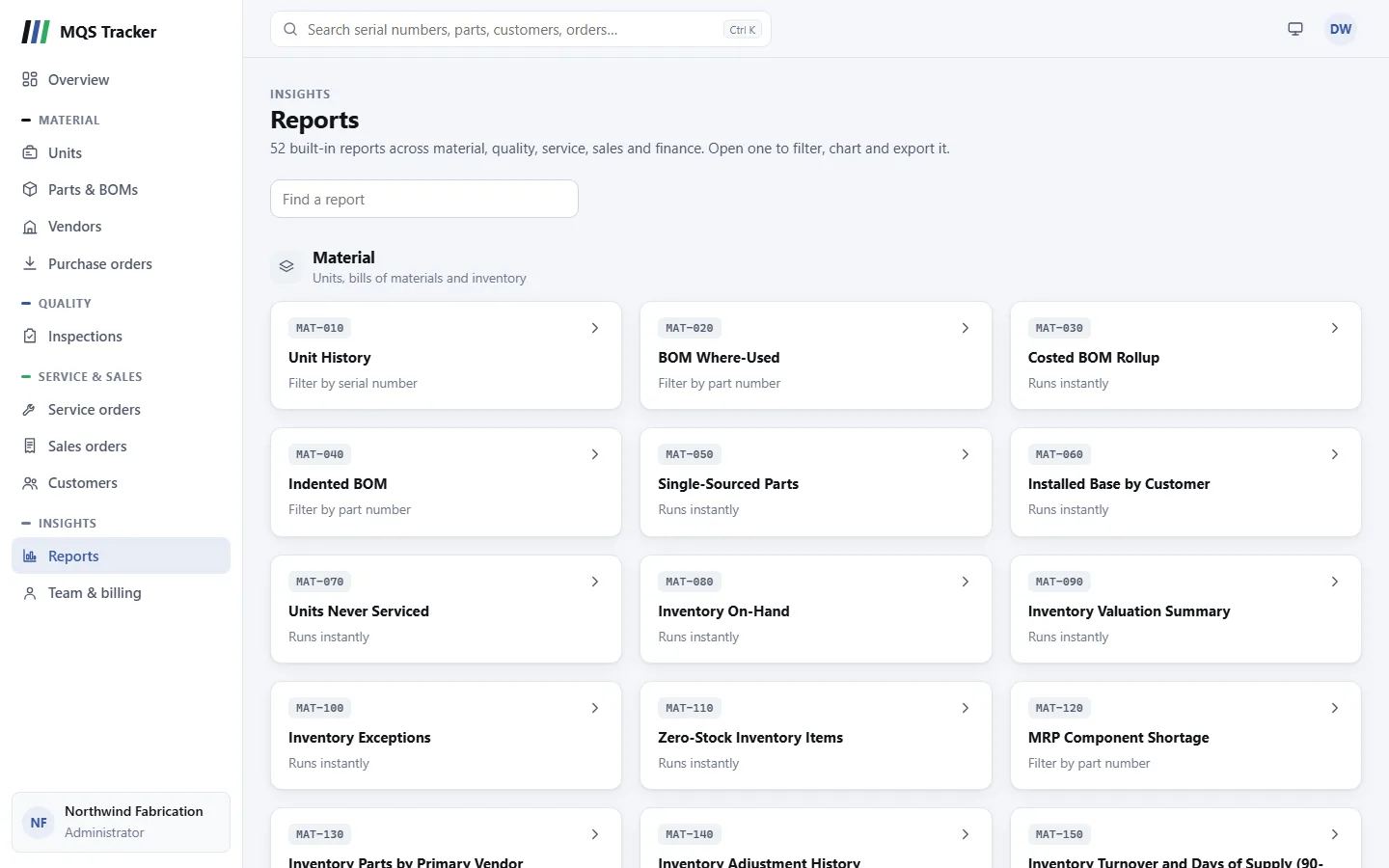
Open Reports from the menu.
- Groups: Material, Quality, Service, Sales and Finance, each with a short description.
- Each card shows the report's ID (such as
SLS-030), its title, and either "Runs instantly" or what you can filter it by. - Find a report: type part of a title or ID in the box at the top.
- Shortcuts elsewhere: some pages link straight to a report. The dashboard's charts have a Report link, Inspections has Rejection reasons and Vendor scores, a vendor's page has Yield report (all vendors), and a part's page has Where used (or Costed rollup for an assembly).
Running a report
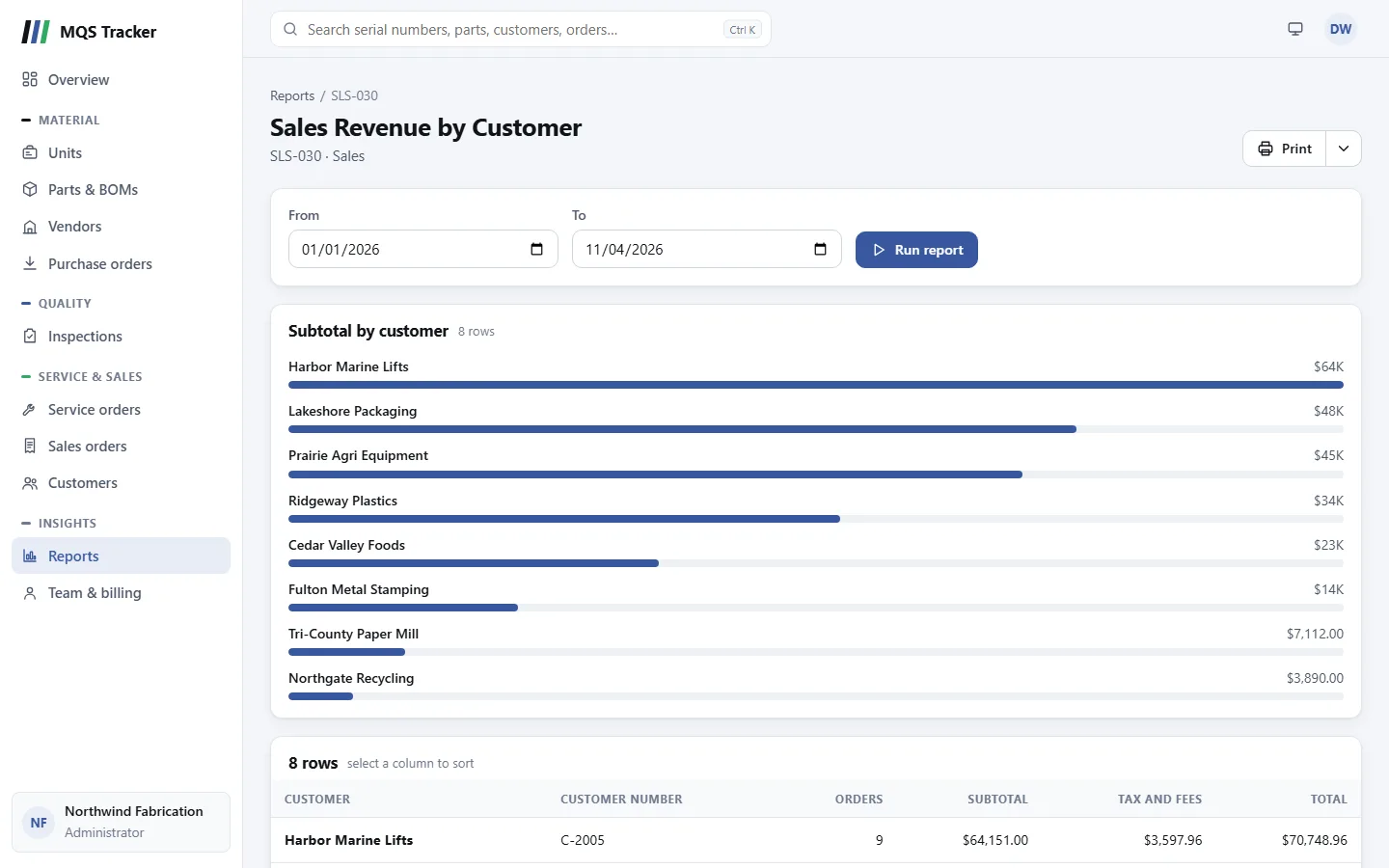
- Filters: a report with filters shows them at the top. Set them and select Run report.
- From and To start at January 1 of this year and today.
- Both days are included, in your own time zone: To runs to midnight at the end of that day. For a single day, set From and To to the same date.
- Dates and months in the results are in your time zone too. For example, an order created at 9 pm on the 31st is in that month, not the next.
- Serial Number and Part Number have to be filled in before the report runs. Until then the page says "Set the filters above and run the report."
- Expected Usage offers Any, Yes or No.
- Commission Percent is optional: leave it empty and the report runs without it.
- Reports without a serial or part number filter run as soon as you open them.
- The chart: when the results suit one, a chart appears above the table: bars for the top rows, or columns by period for reports that have one.
- The table shows how many rows there are. Select a column heading to sort by it, and select it again to reverse the order.
- No results: the page says "No rows for these filters." Try widening the date range.
Printing and exporting
Once the report has rows, a Print button appears at the top. Both ways of getting the results out keep the sort order you chose.
- Print opens the report in a print window, laid out for paper: your organization's name, the report's title, the filters it was run with, when it was printed and the number of rows, then the table, with the column headings repeated on each page. Choose a printer or Save as PDF in the print dialog. If your browser blocks pop-ups, the print dialog opens without the window.
- Export CSV is in the menu on the arrow next to Print. It downloads the results as a CSV file named after the report and today's date, ready for Excel or any spreadsheet.
Material
- MAT-010 Unit History (serial number): when a unit was created, sold, assigned to a customer and serviced.
- MAT-020 BOM Where-Used (part number): the assemblies that use a part, with its position and quantity in each.
- MAT-030 Costed BOM Rollup: each assembly's standard cost against the total standard cost of its components, largest difference first.
- MAT-040 Indented BOM (part number): an assembly's bill of materials.
- MAT-050 Single-Sourced Parts: parts with one vendor, or none.
- MAT-060 Installed Base by Customer: which customers own, or have owned, which units, with start and end dates.
- MAT-070 Units Never Serviced: units that have no service orders.
- MAT-080 Inventory On-Hand: inventory parts with their actual, reserved and available quantities, unit cost and value.
- MAT-090 Inventory Valuation Summary: how many inventory parts you have, the total quantity on hand and its total value.
- MAT-100 Inventory Exceptions: inventory parts where more is reserved than is on hand.
- MAT-110 Zero-Stock Inventory Items: inventory parts with nothing on hand.
- MAT-120 MRP Component Shortage (part number of an assembly): each component's quantity per assembly against what's available and what's still to come on submitted purchase orders. A component that's short but has enough on order shows as Covered by Open POs. Shortages are listed first.
- MAT-130 Inventory Parts by Primary Vendor: each inventory part with its top-priority vendor.
- MAT-140 Inventory Adjustment History (part number): each change to a part's actual, reserved and available quantities, with when and who.
- MAT-150 Inventory Turnover and Days of Supply (90-Day): for each inventory part, the average on hand and the quantity used on orders over the last 90 days, with turnover and days of supply.
- MAT-160 Open Purchase Orders: submitted orders that haven't been received, with the vendor, when each was submitted, days open, the expected date and whether it's late. Late orders are listed first.
- MAT-170 Parts on Order: each part still to come on submitted purchase orders (lines not yet received, including back-orders), with on hand, available, on order, available plus on order, and the oldest submitted and earliest expected dates.
- MAT-180 Purchases by Vendor (dates): orders received from each vendor, with the total, the average order, and how many arrived by their expected date (on-time %, counting only orders that had one).
- MAT-190 Purchase Price Variance (dates): purchase order lines, by when they were received and how many came, whose unit cost differs from the part's standard cost, with the difference per unit, in total and as a percentage. The largest differences are listed first. Use it to spot standard costs that need updating.
Quality
- QUA-010 Vendor Quality Scores: each vendor's incoming inspections, passes and failures, and a score from its pass rate, lowest first. Vendors with no incoming inspections have no score and come last.
- QUA-020 Rejection Reason Breakdown: rejections by reason, with each reason's share.
- QUA-030 Inspection Pass/Fail Trend: inspections by month and result.
- QUA-040 Inspection Pass Rate by Type and Source: inspections, passes, failures and pass rate for each inspection type and source.
- QUA-050 Rejection Disposition Summary: rejections by disposition, with each one's share.
- QUA-060 Supplier Rejection Detail (dates): each rejection with its vendor, part, reason, disposition, quantity tested and notes.
- QUA-070 Nonconformance Pareto by Defect Category: rejections grouped by reason-code category, most first.
- QUA-080 Chronic Nonconformance by Part: parts that have failed inspection, with their fail rate, most failures first.
- QUA-090 Incoming Inspection Yield by Vendor and Part: inspections, passes, failures and yield for each vendor and part.
- QUA-100 Inspector Performance (dates): inspections, passes, failures and fail rate for each inspector.
- QUA-110 Serial Number Inspection History (serial number): every inspection of a unit, with its result, rejection reason and disposition.
- QUA-120 Customer-Reported Nonconformances (dates): inspections from customer returns and customer requirements.
- QUA-130 Customer Returns (dates): each line of the returns received in the date range, with the customer, order, reason, status, quantity, inspection result and the disposition it was approved with.
Service
- SVC-010 Open Service Orders Summary: service orders with their customer, the customer's contacts, and who entered the order.
- SVC-040 Item Usage Compliance (dates, expected usage): parts fitted at a position on service orders, and whether the unit's bill of materials expects that part there.
- SVC-050 Service Order Backlog: service orders that aren't closed or cancelled, with how many days they've been open and their total.
- SVC-060 Labor vs Material Revenue Mix (dates): labor and material revenue on service orders, by month.
- SVC-070 Technician Productivity (dates): service orders and their total for each person who entered them.
- SVC-080 Service Frequency by Unit: how many service orders each unit has had, and the average days between them.
Sales
- SLS-010 Open Sales Orders Summary: sales orders with their customer, the customer's contacts, and who entered the order.
- SLS-020 Sales Order Backlog: sales orders that aren't closed or cancelled, with how many days they've been open and their total.
- SLS-030 Sales Revenue by Customer (dates): each customer's orders, subtotal, tax and total.
- SLS-040 Top Selling Parts (dates): quantity sold and revenue for each part on sales orders.
- SLS-050 Sales Rep Performance (dates): the orders each salesperson booked in the date range, by when they were created. Booked means anything past Draft that isn't Cancelled. It shows their net sales and total, and how many are invoiced and how many are still open. Drafts and cancelled orders are counted in their own columns and left out of the totals. For commission, use SLS-060, which goes by when orders were invoiced.
- SLS-060 Sales Commission (dates, commission percent): each salesperson's orders invoiced in the date range, with net sales (the line amounts, without tax, fees or shipping), the average order, tax and fees, shipping and the total. Enter a Commission Percent to add the commission on net sales; leave it empty to leave that column blank.
- A sale counts in the period it was invoiced, even if the order is cancelled later. The cancellation is a reversal, a negative amount in the period the order was cancelled. Reversals shows how many there are.
- A credit note on a sales order is a negative amount (before tax) in the period it was issued, against the order's salesperson; a voided credit counts back in the period it was voided. Credits shows how many there are.
- So a period's figures don't change after you've paid commission on them, and the next period carries the adjustment. An order invoiced and cancelled in the same period nets to zero.
- SLS-070 Sales Commission Detail (dates, commission percent): the lines behind SLS-060, one per row: the customer, the Date, the Type (Sale, Reversal for a cancellation, Credit for a credit note, with its number after the order's, or Credit void), its net sales and the commission on it.
Finance
- FIN-010 Customer Credit Utilization: customers with a credit limit, their balance and how much of the limit is used.
- FIN-020 Tax Collected Summary (dates): tax collected by month, from sales and from service.
- FIN-030 Tax Collected by Customer (dates): tax collected from each customer.
- FIN-040 Taxable vs Exempt Sales Summary (dates): taxable and exempt amounts on sales and service orders, with the tax collected.
- FIN-050 Tax-Exempt Customers: customers marked tax exempt, with their tax IDs.
- FIN-060 Tax Liability by Jurisdiction (dates): tax collected for each tax rate, from sales and from service.
- FIN-070 Tax Rate Audit Trail (dates): the tax rate applied to each order, broken into state, county, city and special rates, with the date it was applied.
- FIN-080 Vendor Balances: what you owe each vendor (their received purchase orders not yet closed), with their credit limit and the oldest unclosed order's received date and age.
- FIN-090 Accounts Receivable Aging: what each customer owes on issued invoices (the total less payments so far), by how far past the due date: current, 1–30, 31–60, 61–90 and over 90 days, and in all.
- FIN-100 Open Invoices: each issued invoice with its customer, dates, days past due, total, what's been paid and the balance due, oldest due date first.
- FIN-110 Payments Received (dates): each invoice payment received in the date range, with the invoice, customer, method, reference and amount.
- FIN-120 Credit Notes (dates): each credit note dated in the range, with its customer, invoice, reason, status, amounts, and what was applied to invoices, refunded and is still available.
- Credits in the tax reports: FIN-020, FIN-030, FIN-040 and FIN-060 take each credit note's tax off in the period it was issued (and put a voided credit's back in the period it was voided). FIN-040 counts a credited line as taxable when it carries tax.