Docs / Material
Units
A unit is one serial-numbered product you've built. Each unit is built as a model, which is an assembly part with its own bill of materials (see Parts and bills of materials). Open Units in the sidebar to see them all.
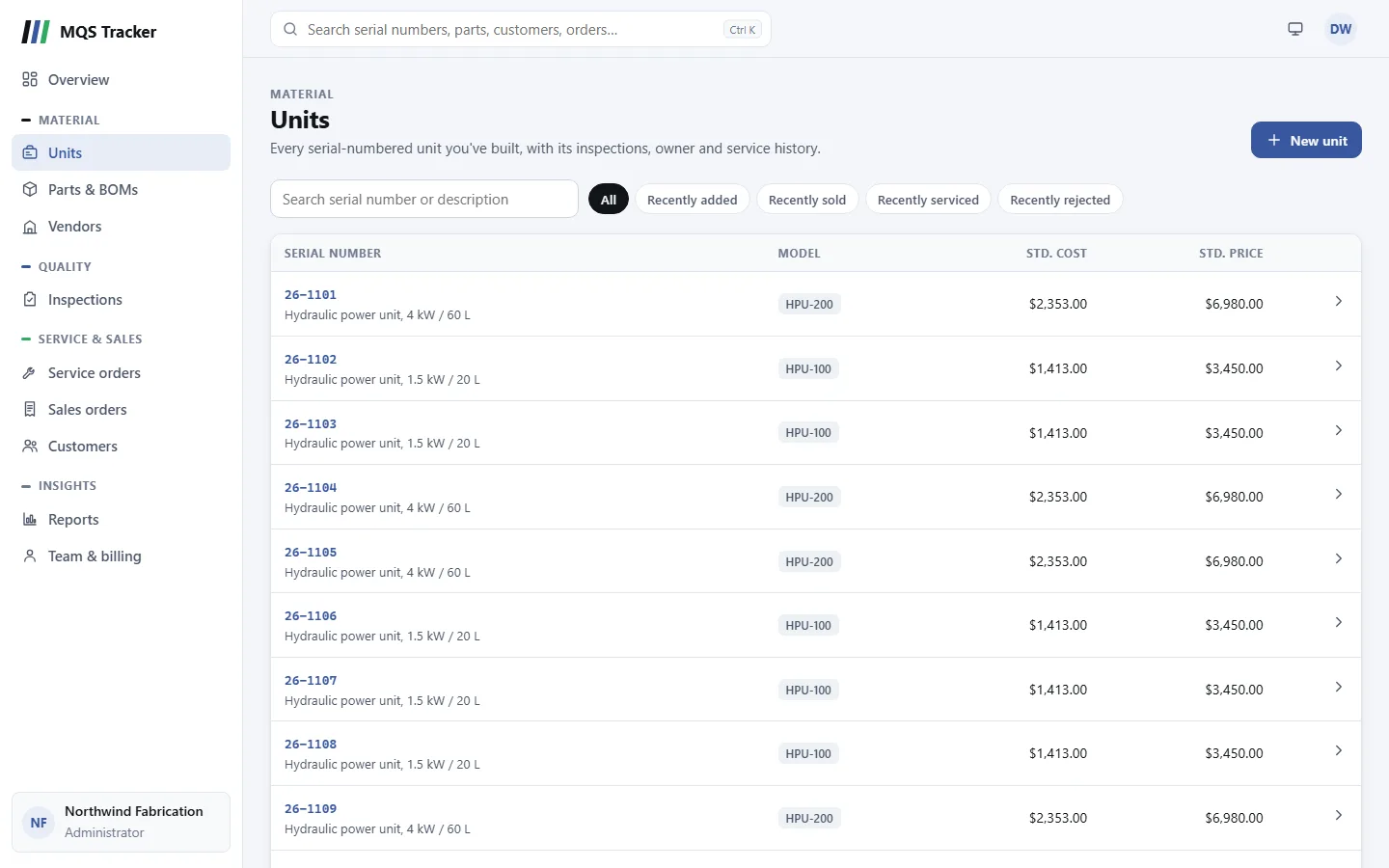
Finding a unit
- The list shows each unit's Serial number and description, its Model, and its Std. cost and Std. price. Click a row to open the unit.
- Searching: type in Search serial number or description. It matches from the first character, so
HPUfindsHPU-2041but2041doesn't. - Filters: All, Recently added, Recently sold (units on sales orders), Recently serviced (units on service orders), Recently rejected (units with a failed inspection), and the statuses In stock, In service, Returned and In rework. The table shows each unit's Status. The filters are hidden while you're searching; clear the search box to see them again.
- More than one page: Previous and Next at the bottom of the list move between pages.
Adding a unit
- New unit opens the form. It has two fields, and both are required:
- Serial number, which no other unit can already use ("Serial Number is already in use.").
- Model (assembly part number). Start typing and pick the assembly from the suggestions. It has to be an existing assembly part; if it isn't you'll see "Assembly Part Number was not found."
- Create unit saves it and opens the unit's page.
- Description, cost, price and taxable aren't typed in. They're copied from the model's assembly part each time you save the unit. If you change the assembly's price later, a unit picks up the new price the next time it's saved.
Editing and deleting a unit
- Edit on the unit's page opens the same form. You can change the serial number or the model; saving copies the description, cost, price and taxable setting from the model again.
- Delete (the bin button) asks first. A unit that's on a sales order, has service orders or has been inspected can't be deleted; you'll see what uses it, e.g. "26-1108 can't be deleted because it's used by 1 sales order line, 2 service orders and 4 inspections."
- Change history (the clock button) shows who changed the unit and when. See Change history.
Unit status
Each unit has a status, which follows it through the system:
- In stock when it's added.
- In service when a sales order ships it to a customer (Fulfilled), and In stock again if that order is moved back or cancelled.
- Returned while it's on an open return, and In service again if the return is cancelled.
- Once the return is approved, what the approval decided: In stock (returned to stock), In rework, Scrapped, Returned to vendor, or In service (returned to the customer).
The other recommended status, In production, is for setting by hand. The status isn't required, so units from before it was added may have none.
Only an administrator can change the status by hand, under Edit: to put it right, or to use a status the system doesn't set. For everyone else the form shows it but can't change it. The statuses are a lookup list (unit_status), like the other selection lists.
The unit's page
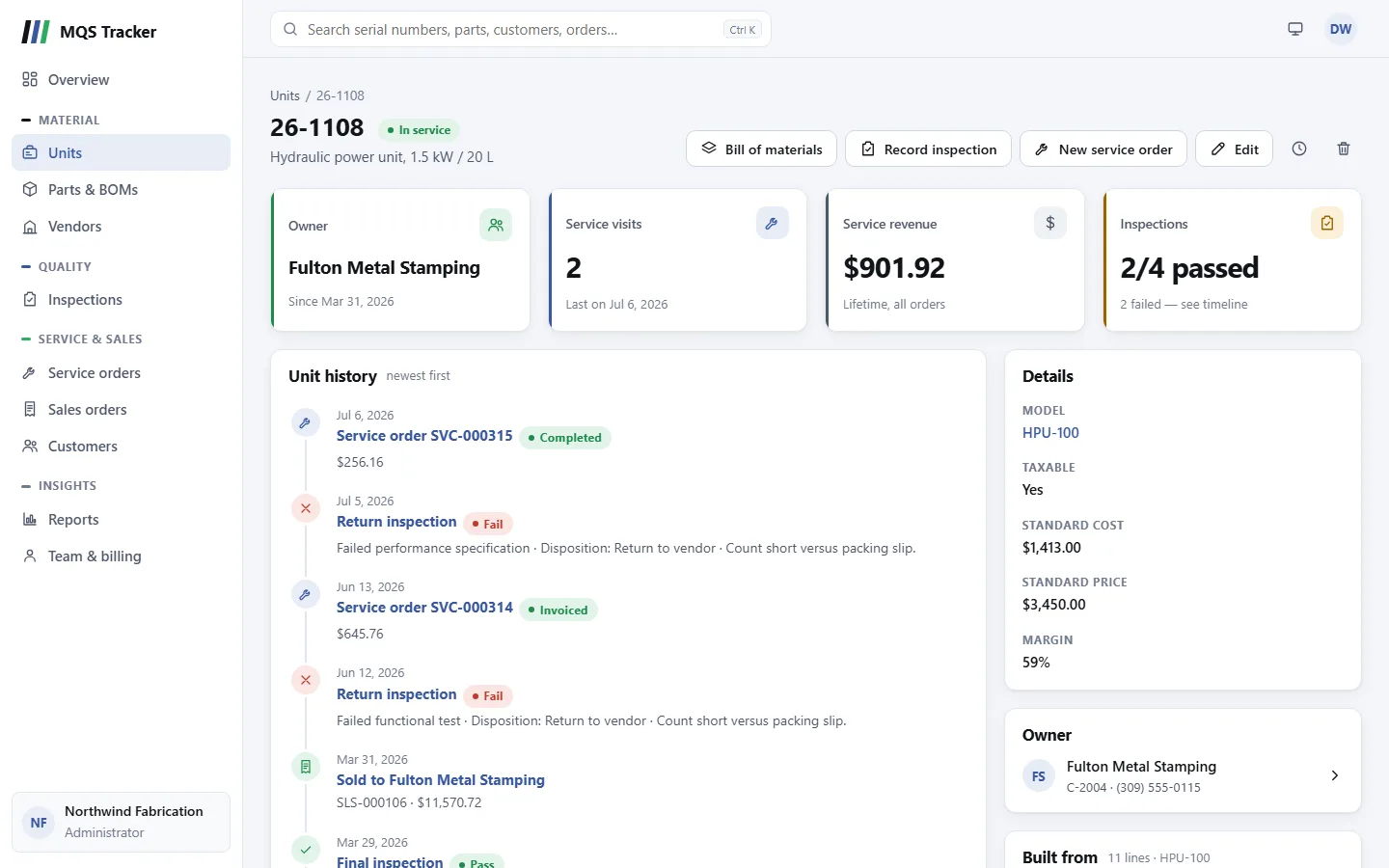
- At the top: the serial number and description, with the unit's status (see Unit status above). A unit without one shows In service when a customer owns it, or Finished goods when nobody does.
- The four figures:
- Owner: the customer who owns it and the date since, or Not sold.
- Service visits: how many service orders the unit has, and the date of the last one.
- Service revenue: the total of all its service orders.
- Inspections: how many passed out of how many, and how many failed.
- Details: the Model (a link to the assembly), Taxable, Standard cost, Standard price and, when there's a price, the Margin.
- Owner: the current owner, with their customer number and phone. Click it to open the customer.
- Built from: the first lines of the model's bill of materials, with the quantity of each. When there are more than eight, Full bill of materials opens the assembly.
Unit history
Unit history lists everything that has happened to the unit, newest first:
- Added to MQS, with the model it was built as.
- Each inspection, with its type and result. A failed one shows the rejection reason, the disposition and the notes. Click it to open the inspection.
- Each service order, with its total and status. Click it to open the order.
- Sold to the current owner, with the sales order number and total. Click it to open the sales order.
Who owns a unit
You don't set a unit's owner by hand. It follows the sales orders the unit is on:
- Selling a unit: add the unit to a sales order. When the order is marked fulfilled (or reaches Invoiced or Closed), the order's customer becomes the owner from that day. See Sales orders.
- Changing owner: sell the unit on another order to the new customer. When that order is fulfilled, the earlier ownership ends and the new one starts. A customer who buys a unit back gets a new ownership period.
- Undoing a sale: if the order goes back to an earlier status or is cancelled, the unit is removed from the order, or the order is deleted, the unit goes back to whoever owned it before. Changing the customer on a fulfilled order moves the unit to the new customer.
- On the customer's side, the units a customer owns are on the Installed base tab of their page. See Customers.
Inspections and service from a unit
- Record inspection opens the inspection form with the unit's serial number filled in, as a Final inspection from Internal Audit. Change the type and source if they don't fit. See Inspections and rejections.
- New service order starts a service order for the unit, with the owner as the customer when there is one. See Service orders.
- Bill of materials opens the model's assembly part, with its full bill of materials. It's shown when the model's assembly part exists.