Docs / Getting started
Finding your way around
Every page has the same frame: the sidebar on the left, and a bar across the top with search, the theme switch and your account menu.
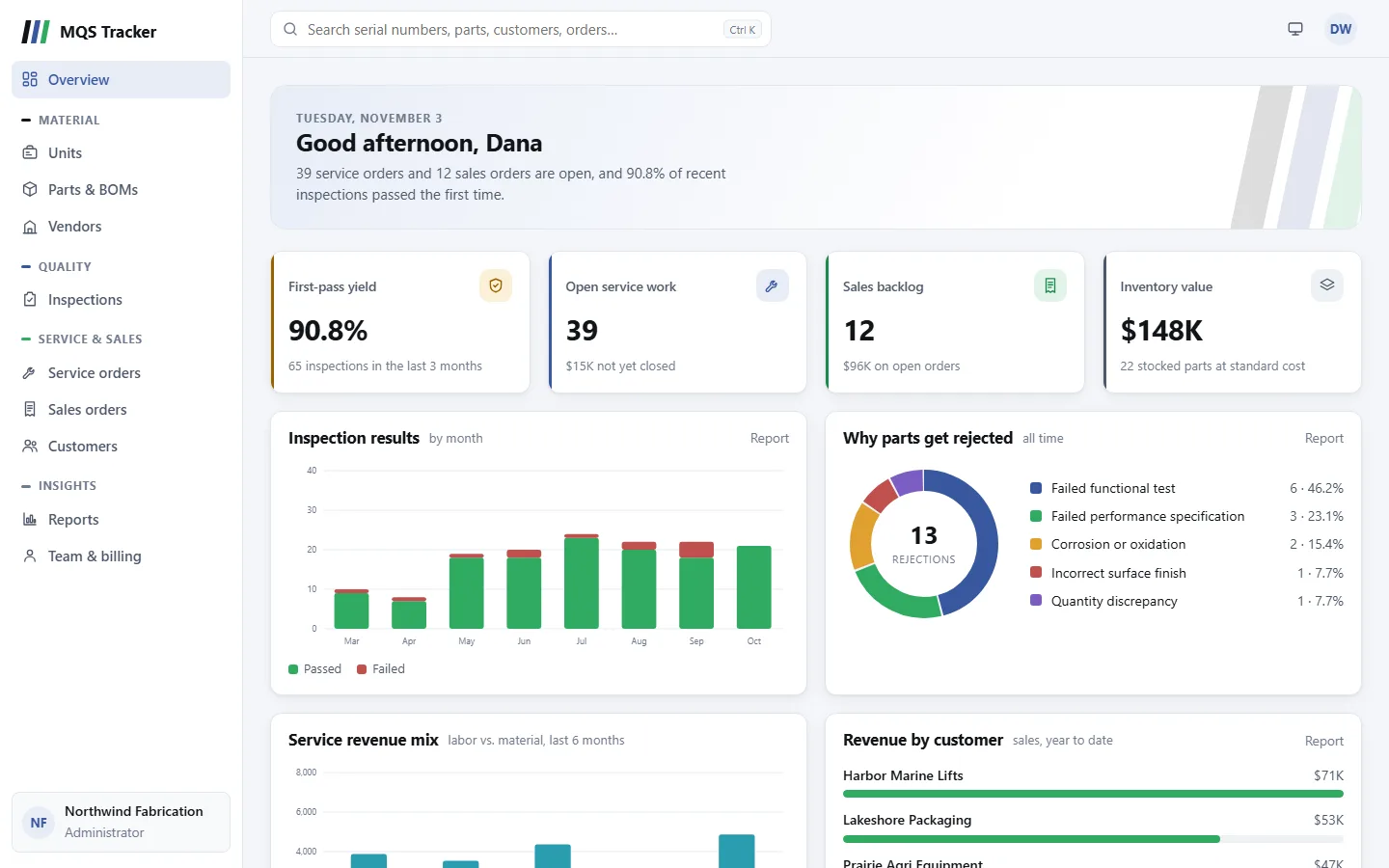
The Overview page
Overview, at the top of the sidebar, is the first page you see after signing in. It greets you with today's date and a one-line summary of open orders and recent inspections.
- Key figures across the top:
- First-pass yield: the share of inspections that passed, over the last 3 months.
- Open service work: open service orders, and their value not yet closed.
- Sales backlog: open sales orders, and their value.
- Unpaid invoices: what's still due on issued invoices, how many there are and how many are overdue.
- Inventory value: stocked parts at standard cost.
- Charts: Inspection results by month, Why parts get rejected, Service revenue mix (labor vs. material, last 6 months), Revenue by customer (sales, year to date), Parts used most in service, Most-serviced units and Vendor quality (incoming pass rate).
- Latest service orders and Latest inspections list the newest ones; select one to open it, or View all for the full list.
- Report on a card opens the report behind it. Parts and units in the charts open their own pages too.
- A new organization shows empty cards ("No inspections recorded yet" and so on) until you've added records.
The sidebar
The sidebar groups the pages by what they cover:
- Material: Units, Parts & BOMs, Vendors and Purchase orders.
- Quality: Inspections.
- Service & sales: Service orders, Sales orders, Invoices, Credit notes, Returns and Customers.
- Insights: Reports, QuickBooks export (administrators) and Team & billing.
- Your organization is at the bottom, with its name and your role in it (Administrator or Member).
Searching
- The search box at the top searches serial numbers, part numbers, customers, vendors, service and sales order numbers, and invoice, credit note and return numbers and customers, all at once. Type at least two characters.
- Results are grouped: Units, Parts, Customers, Vendors, Service orders and Sales orders. Select one to open it.
- From the keyboard:
Ctrl+K(Cmd+Kon a Mac) jumps to the search box from anywhere. The up and down arrows move through the results,Enteropens the highlighted one, andEsccloses the list. - Serial numbers, part numbers and order numbers match from the start, so type the beginning of the number, not a piece from the middle.
Light or dark
The sun, moon or screen button in the top bar changes the theme. Each click moves to the next: following your device's setting (the screen icon), light (sun), then dark (moon). The choice is remembered in this browser.
The account menu
Select your initials at the top right to see your name and email, and:
- Your profile: your name, email and password, and feedback. See Your profile and password.
- Team & billing: your organization's members and subscription. See Team and billing.
- About MQS Tracker: the version, legal terms and how to contact us.
- Welcome & tips: the welcome you see after signing in, any time. See The welcome below.
- Help & documentation: these pages, in a new tab.
- Sign out.
The welcome
After you sign in, a short welcome shows a few tips: the sidebar, search, your profile and where to find help. Choose Get started to close it.
- Show this when I sign in is on to start. Turn it off before closing to stop the welcome showing when you sign in. It's saved to your account, so it applies on every device.
- Welcome & tips in the account menu opens it any time, where you can turn it back on.
- A new organization sees the welcome once the app is open, after the free trial has started.
Switching organizations
If you belong to more than one organization, the organization card at the bottom of the sidebar has arrows on it.
- Select it to see Switch organization: each organization, with your role in it.
- Choose one and MQS Tracker opens its Overview page. Everything you see, and what you can do, belongs to the organization you're in.
- Next time you sign in, the organization you used last in this browser opens.
- Your name, email and password are the same in every organization.
On a phone or tablet
- The sidebar folds away on smaller screens. The menu button at the top left opens it; choose a page, or tap outside it, to close it.
- Search, the theme switch and the account menu stay in the top bar.
- Lists turn into cards on a phone, and forms show one field per row.