Docs / Service & sales
Service orders
A service order records repairs, maintenance and field work for a customer, tied to the serial number of the unit you serviced. It works much like a sales order, with labor and parts instead of units.
The order list
Open Service orders from the menu.
- The table shows each order's number, customer, the unit's serial number, date, status and total. Select a row to open the order.
- Searching: type the start of an order number.
- Filters: All (newest first), Draft, Open, In progress, Completed, Invoiced and Closed.
Creating an order
- Select New service order, choose the Customer, and select Create order.
- Unit serviced is optional: enter or pick the serial number. Linking it puts the order on the unit's history. It has to be a unit already in MQS Tracker.
- From somewhere else: New service order on a customer's page fills in the customer, and on a unit's page fills in the unit and its current owner.
- The order number is assigned automatically, the order starts as Open, and the customer's tax rate is applied from the address their Tax by setting chooses (their first address unless set otherwise).
Adding lines
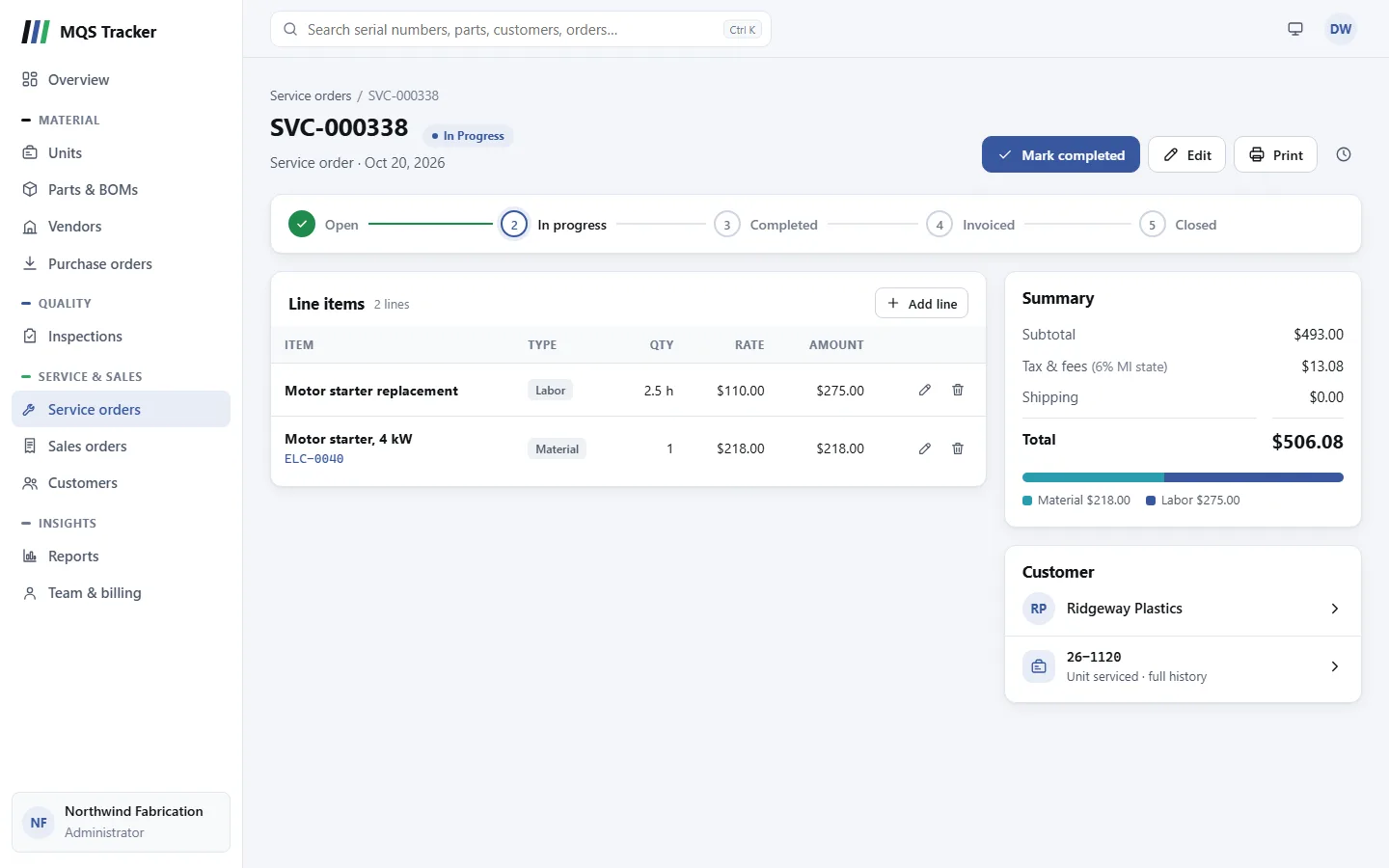
Select Add line, choose the Line type, and select Add line in the panel.
- Labor: enter the Hours. It's billed at the customer's Service labor rate, set on the customer. See Customers.
- Part: enter or pick the Part number and a Quantity. It's priced at the part's standard price.
- Position is optional: where the part was fitted. The Item Usage Compliance report compares the parts and positions used against the unit's bill of materials. See Reports.
- Changing a line: the pencil button changes the hours or quantity. The line is re-priced at the current standard price or labor rate, with tax at the current rate.
- Removing a line: the bin button. The totals are recalculated.
Status steps
The steps across the top show where the order is: Open, In progress, Completed, Invoiced, Closed. The main button at the top moves the order to the next step.
- Start work (from Open): the job is under way.
- Mark completed (from In progress): the work is done.
- Create invoice (from Completed): starts an invoice for the customer with this order on it. Issuing the invoice marks the order Invoiced, which locks its lines, and recording the invoice's payment closes it. See Invoices.
- On an invoice: the order's page has a button for the invoice in place of the next step, and the Summary card links to it. While it's on an invoice that isn't void, the order can't be cancelled, moved back or given to another customer.
- Mark invoiced (under Edit, from Completed): for a job billed outside MQS Tracker. Close order (from Invoiced) then finishes it. The order can still go on an invoice later.
- Draft and Cancelled aren't steps. A draft order shows as the Open step and Start work can start it straight away; a cancelled one shows "This order was cancelled." instead of the steps.
- Stock: part lines on Open and In progress orders count toward each inventory part's Reserved quantity, which is worked out again when an order's lines change or the part is counted. Mark completed takes the part lines off each part's On hand; moving the order back or cancelling it puts them back. See Parts and BOMs.
Who can change the status
- Forward: anyone can move an order one step forward, with the main button or under Edit. Steps can't be skipped.
- Back: an administrator can move an order one step back under Edit, but never from Invoiced back to an earlier step.
- Cancelling: anyone can cancel an order before it's invoiced. An administrator can also cancel an invoiced order, to replace it with a new one (void its invoice first, if it's on one). A closed order can't be cancelled.
- Reopening: an administrator can reopen a cancelled order; it starts again as Draft.
- Edit lists only the statuses you can move to from where the order is. Anything else gets a message saying why.
When an order is locked
- An order that's Invoiced, Closed or Cancelled has its lines locked: you can't add, change or remove lines, and the page says so.
Returns
Parts used on a job that the customer sends back (unused spares, say) are recorded with Record a return on an order that's Completed or later. Each line is inspected and an administrator approves what goes back on hand. While parts are on a return, the order can't move back before Completed or change customer, and the returned lines can't be changed. See Returns.
- To change an invoiced order, an administrator can cancel it and you can create a new one. A closed order stays as it is.
Editing the order
Edit opens the order's details:
- Status (the statuses you can move the order to from where it is), Customer and Unit serviced.
- Changing the customer applies their tax rate to the order and works out each line's tax again. Lines keep the price they were added with.
- Select Save changes when you're done.
Tax and totals
- The Summary card shows the Subtotal, Tax & fees with the rate and its name, Shipping and the Total, and how the amount splits between material and labor.
- What's taxed: parts marked taxable, and labor only when the customer's Labor is taxable is ticked. Nothing is taxed for a Tax exempt customer, or when there's no rate for the customer's address.
- Tax is worked out per line, when the line is added or changed, and again for every line when the order is saved under Edit (so a change to the customer, their address or tax exemption is picked up). An order that's invoiced, closed or cancelled keeps its tax unless you reopen it.
The customer and the unit
- The Customer card links to the customer's page.
- The unit below it, marked "Unit serviced · full history", opens the unit. See Units.
Printing an order
Print at the top opens the order in a print window, laid out as a document to hand or send to the customer:
- Your organization's name, address, phone and email (set under Team & billing), then the order number, date and status.
- The customer, with their number, billing address and phone, a Ship to block when the shipping address is different, and the unit serviced.
- The lines with their part or serial numbers, quantity, rate and amount, then the subtotal, tax and fees, shipping and total.
Choose a printer or Save as PDF in the print dialog. If your browser blocks pop-ups, the print dialog opens without the window. Any order can be printed, whatever its status.
Deleting an order
- Only a Draft or Open order (before work starts) can be deleted: the bin button at the top deletes it and all its lines.
- Once work has started, cancel it instead, so there's a record.
- The clock button shows the order's change history, including its lines.